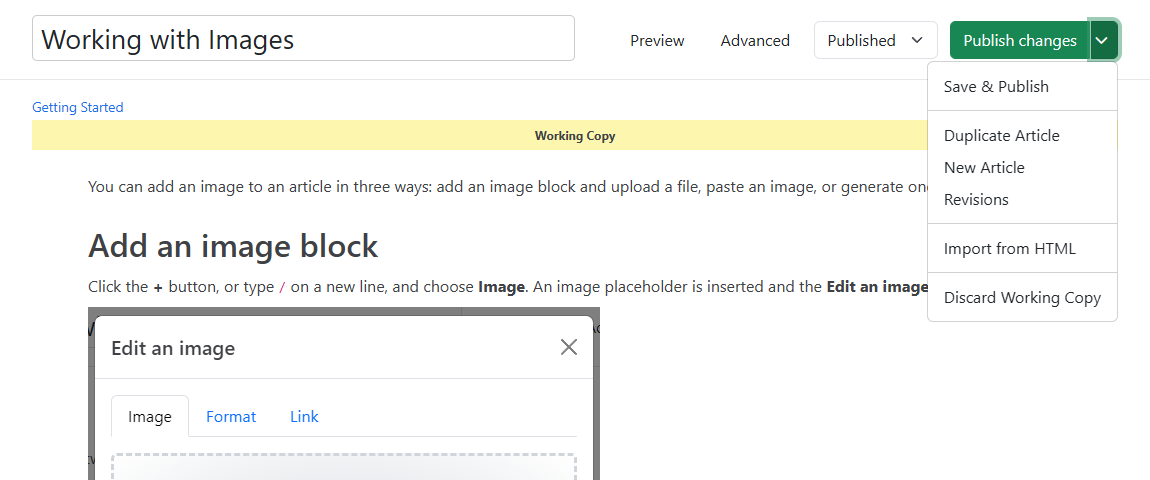
HelpGuides is a modern knowledge management platform built for the future of the AI-powered Internet.
Getting started with HelpGuides is simple.
Its editor organizes content into blocks. You can add, move, edit and convert blocks, and tune each one with its own options.
You don't need to know HTML to create great content, though HelpGuides still supports it. HelpGuides also optimizes your content so search engines and LLMs can easily use it.
When you create a new HelpGuides account, the first thing you'll see is a screen that looks like:
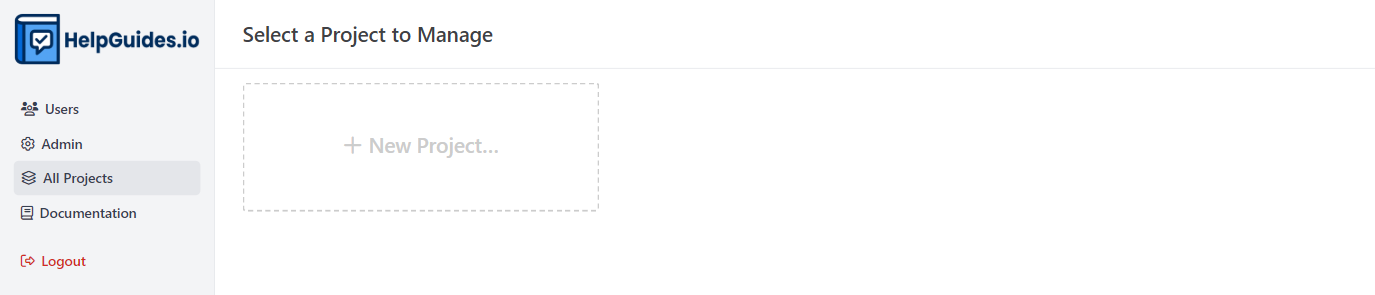
HelpGuides lets you manage many projects. Each project is a knowledge base.
Click New Project…, enter a Name for your project and click Add project.
When you create a new project, a Welcome to HelpGuides! article is automatically created.
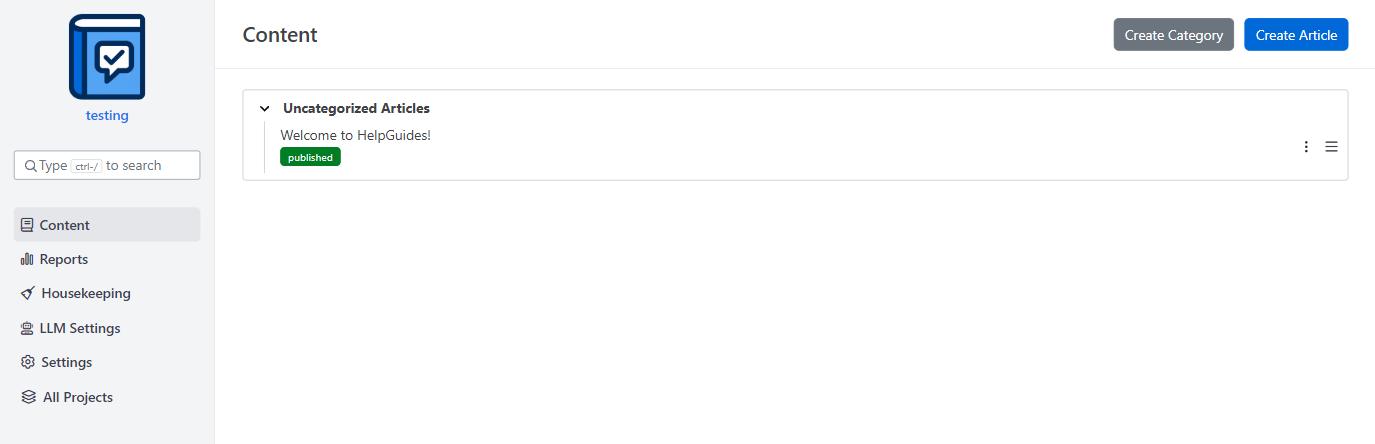
The Welcome to HelpGuides! article has useful links and information, including links to this article and others. Feel free to edit or delete it. It's a simple way to get familiar with editing and publishing.
In the left navigation, click Settings. On the General tab, set your project's Title, Welcome Message, domain and Primary Color, then click Update.
Now that your project is set up, let's publish your first article.
To create an article, click Content in the left navigation, then Create Article. Articles can be Published, Draft, Unlisted, Scheduled or Deleted. See Writing and Editing Articles for what each status means.
HelpGuides also supports working copies. When you save changes, they're kept in a working copy until you publish them, so you can finish all your edits before they go live. If you're unhappy with a working copy, discard it.
HelpGuides also keeps a full revision history. If you lose something important, you can restore an older revision.
Whether creating a new article or editing an existing article, you'll find the editing experience simple and intuitive.
Let's explore some of the basics:
When you start typing, or hover over an existing block, two buttons appear on the left:

You can also create a new block by typing / on the first line when editing.
The best way to learn blocks is to try them. For a list of every block, see Editor Blocks Reference.
To add text, just start typing. Select text to make it bold or italic, format it as code, or add a link.
Keyboard shortcuts work as expected, such as Ctrl+B (Cmd+B on Mac) for bold text.
Adding images is easy. Paste an image and it's uploaded and served from a Content Delivery Network (CDN) automatically. Or add an image block and choose the image yourself.
Another important feature when creating content is adding links.
When you're ready to publish your first article:
Content is only published when you click Publish changes, or Save & Publish in the menu next to the save button. Until then, your saved edits stay in a working copy, so you can keep working on an update without changing the live article.