Working with Images
You can add an image to an article in three ways: add an image block and upload a file, paste an image, or generate one with AI.
Add an image block
Click the + button, or type / on a new line, and choose Image. An image placeholder is inserted and the Edit an image window opens:
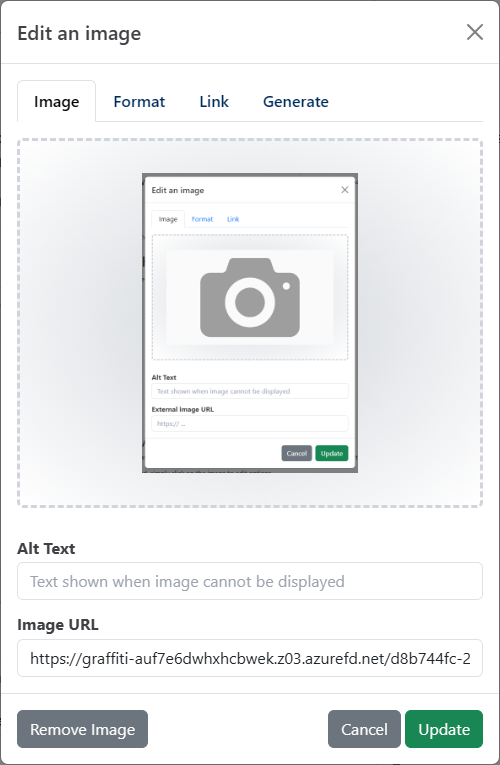
You can leave the image placeholder in your article if you plan to add the image later.
Upload an image
On the Image tab, click the image area or drag an image onto it to upload it, then click Update. You can upload PNG, JPEG, GIF, WebP, AVIF, BMP, ICO and SVG files up to 25 MB.
Served from a CDNImages you upload to HelpGuides are served from a CDN, so they load quickly for your readers.
Image options
| Tab | Option | Description |
|---|---|---|
| Image | Alt Text | Describes the image for screen readers and search engines. Shown when the image can't be displayed. |
| Image | Image URL | Use an image hosted elsewhere by entering its URL. |
| Format | Image Caption | Text shown below the image. |
| Format | Maximum height | The largest height, in units such as px, em or %. |
| Format | Maximum width | The largest width, in units such as px, em or %. |
| Link | Link to URL | Opens this URL when a reader clicks the image. |
| Generate | Creates an image with AI. See below. |
To remove the image from the block, click Remove Image.
Generate an image with AI
- Add an image block, or click an existing image, to open the Edit an image window.
- Click the Generate tab.
- In Describe the image you want, describe the image.
- Choose an Image Size: Square (1024 x 1024), Landscape (1536 x 1024), Portrait (1024 x 1536) or Auto.
- Click Generate Image.
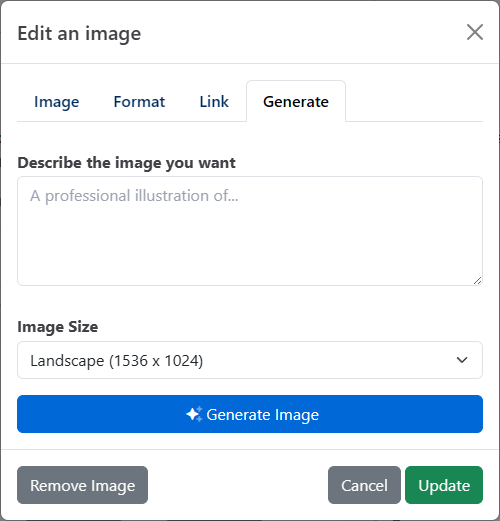
The image is generated in the background. Until it's ready, the block shows Generating image.... The editor checks once a minute and shows the image when it arrives. You can keep editing and save the article in the meantime.
Edit or resize an image
Click an image, or choose Edit Image in the block's tune menu, to reopen the Edit an image window. To resize an image, drag one of its corner handles. The new size is saved with the article.
Paste an image
You can also paste an image from your clipboard. It's uploaded automatically and added as a new image block.
Once it's added, click the image to change its options.

Import external images
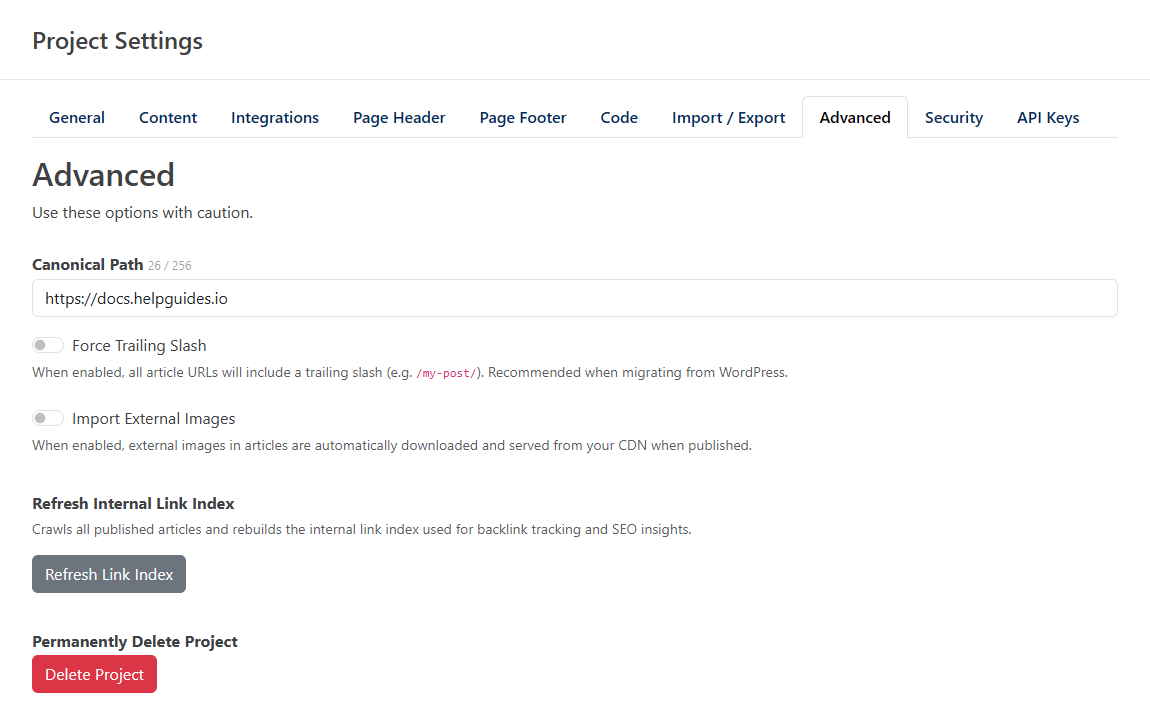
If your articles use images hosted on other sites, HelpGuides can copy them to your CDN. Go to Settings > Advanced and turn on Import External Images. External images in an article are then downloaded and served from your CDN when the article is published.
Related: Editor Blocks Reference, Working with Files, Article Settings (featured images).