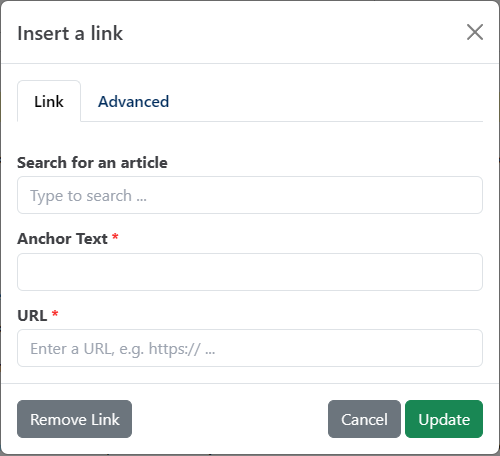
You can add links to other articles in your project (internal links) or to any web page (external links).
To insert a link:
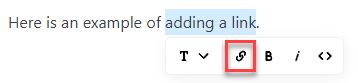
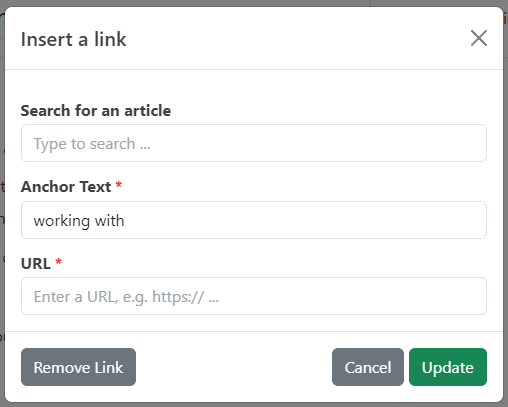
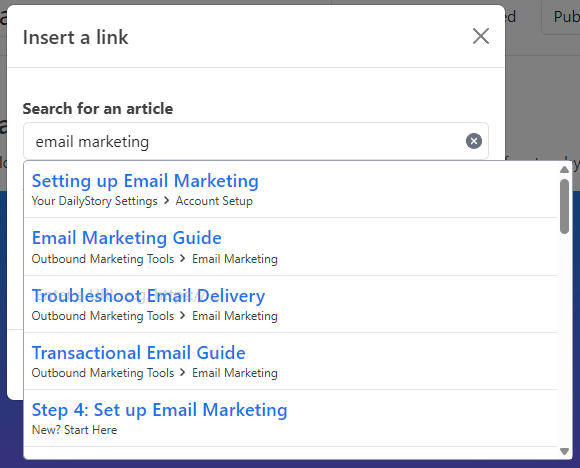
To link to another article, type part of its title in Search for an article. Matching articles appear as you type. Click one to fill in the URL, then click Update.
Internal links use the article's relative URL, so they keep working if you change your domain.
To link to a web page, or to enter any link by hand, type or paste it in URL and click Update.
On the Advanced tab of the Insert a link window:
| Option | What it does |
|---|---|
| Link Target | Where the link opens. Choose Open in New Tab (_blank) to open it in a new tab. This also ticks noopener and noreferrer. |
| Rel Attribute | Tells browsers and search engines about the link: noopener, noreferrer, nofollow (don't pass SEO value), ugc (user-generated content), sponsored (paid or affiliate links) and alternate (for example, another language). |
Click a link in the editor to see its URL and two buttons:
Click the link, click Edit, then click Remove Link. The text stays in place without the link.
To see every link in an article, and which articles link to it, open the Links tab in the editor's Advanced panel. See Article Settings.
Related: Writing and Editing Articles, Working with Images.