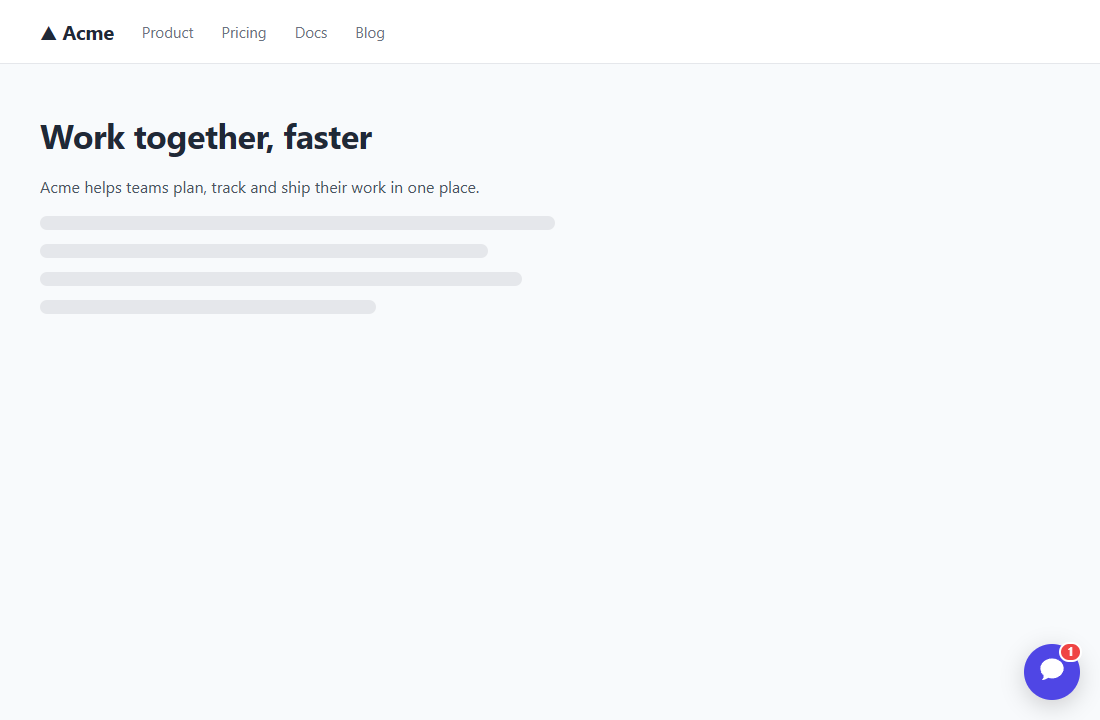
This is the chat experience from your visitors' side, from the first click to rating the conversation. Colors, names and wording come from your Messenger settings, and your website's own styles can't change how the messenger looks.
A round chat button sits in the bottom-right or bottom-left corner of the page, with a red badge counting unread replies. If a reply arrives while the chat is closed, a short preview pops up above the button, and clicking it opens that conversation. While the chat is open, the button is hidden and the chat window takes its place. The window has its own close button.
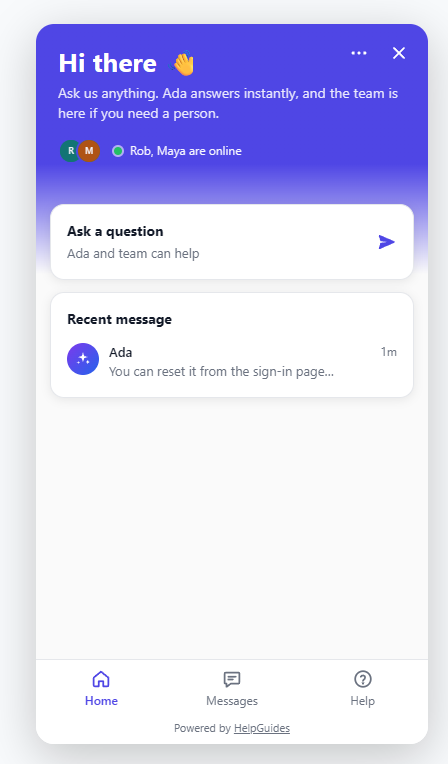
{first_name} or {name} in the Greeting; either reads "there" when the name isn't known.The header's brand color fades into the page behind these cards. There's no search box on Home; searching your articles is on the Help tab.
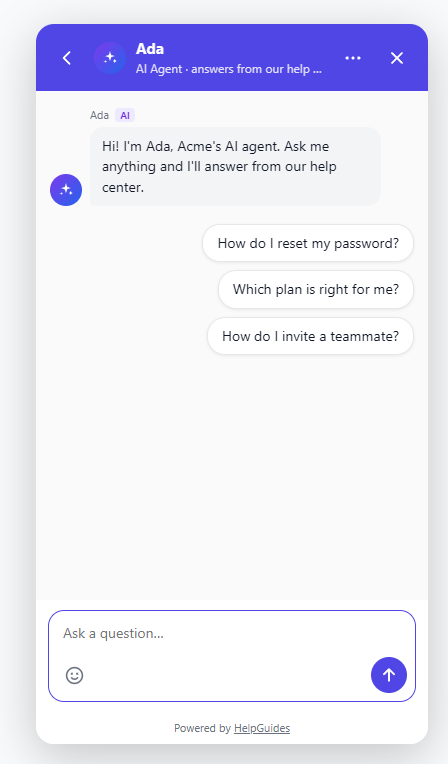
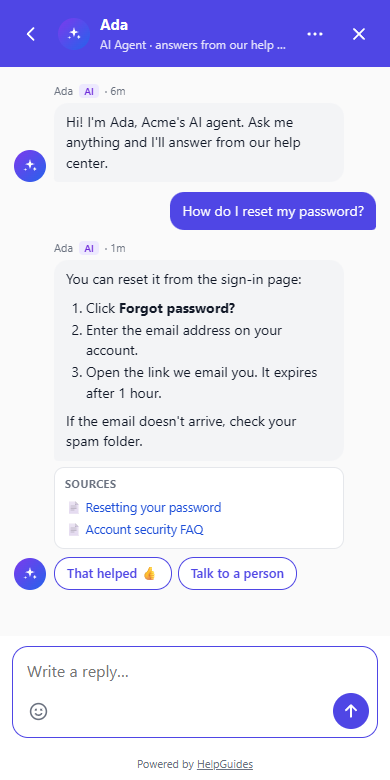
The AI opens every new conversation with its Welcome message, introducing itself by name, labeled AI. This is the same inside and outside your support hours. If you've set suggested questions in Configuring the Chat AI Agent, they appear as buttons under the welcome, and tapping one asks it.
Visitors type their message and press Enter to send (Shift+Enter starts a new line). The message box grows as they type, without scrollbars.
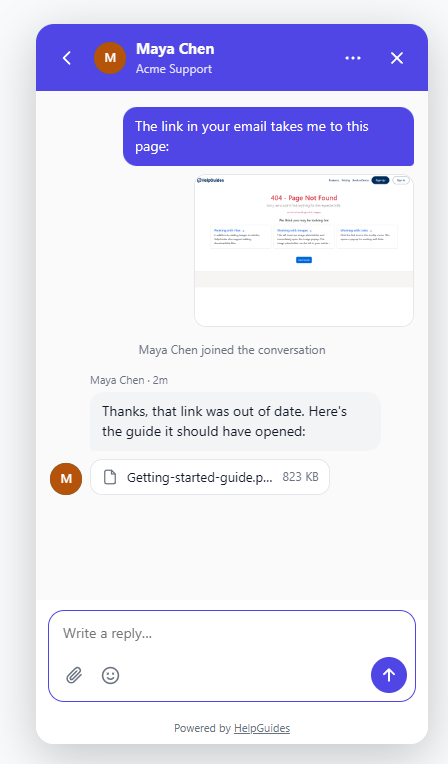
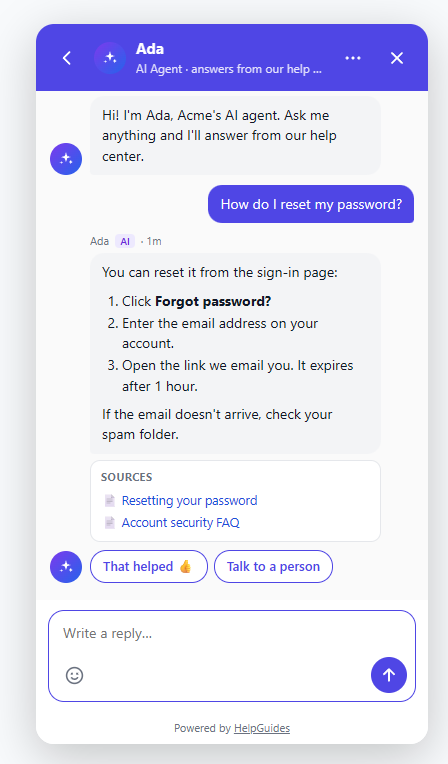
The AI is your first line of support, so outside your support hours a conversation starts the same way, with the AI's welcome, unless you've written a separate out-of-hours welcome. Only the wording about people changes: the Home screen shows "The team is away · back …", and if the AI hands the conversation to your team, the visitor is told when the team is back. The AI keeps answering questions, and anything that needs a person is picked up when your team returns.
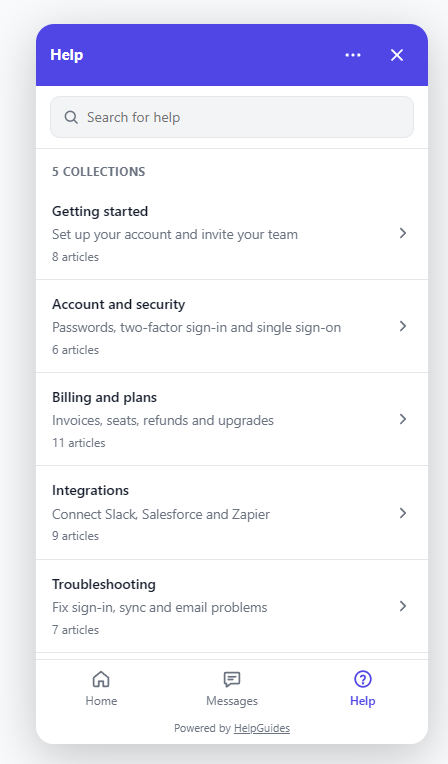
A Help tab sits beside Home and Messages. Visitors can search your help center, browse its collections (your categories) and read articles without leaving the messenger. Each article has Open in help center for the full page and Still need help? Ask a question to start a chat.
The Help tab shows one project's help center, chosen under General, Appearance, Help articles from. By default it's the messenger's own project. Its categories, articles and search all come from that project, even when the AI answers from several knowledge sources. You can turn the tab off with Show help articles in the messenger.
If a visitor doesn't reply to an answer for a couple of minutes while the chat is still open, the AI checks in once about that answer, for example "I hope the password reset steps were helpful! I'm here if you need anything else." It shows That helped 👍 and Talk to a person again. It never checks in with someone who has left, and never more than twice per conversation.
A teammate can start a conversation with someone who's on your site (see Using the Chat Inbox). On a computer, the messenger opens with their message, from a named person rather than the AI. On a phone it appears as a bubble above the chat button. A visitor who is already chatting just sees an unread badge. They reply like any other conversation.
A link to any page on your site with ?chat=1 added, for example in an email, opens the messenger as soon as the page loads, on the home screen or the conversation the visitor was last in. Adding &chat_name=James greets them as "Hi James" and shows the name to your team. The extra parameters disappear from the address bar once the page loads. See Chat Messenger JavaScript API.
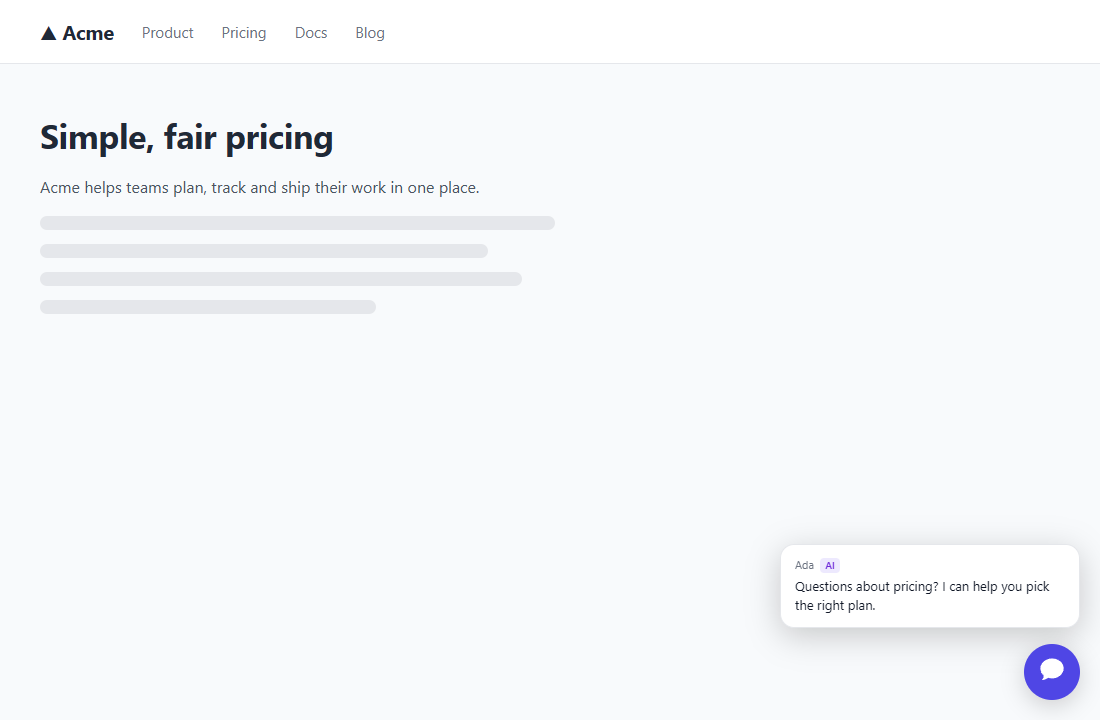
On pages you choose, such as your pricing page, the messenger can start the conversation after a few seconds by showing a message in a bubble above the chat button, on computers and phones alike. It never opens the chat uninvited; clicking the bubble does, and the conversation starts from that message. It can offer its own suggested questions. Visitors who are already chatting are never interrupted. See Chat Proactive Messages.
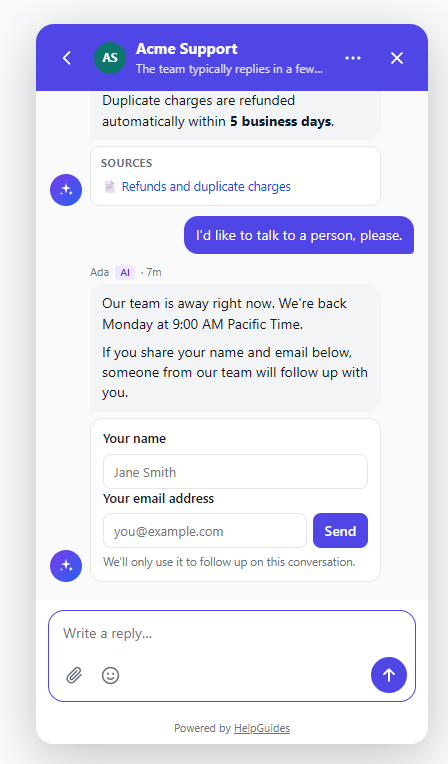
The follow-up form only appears at these moments, and never when you already have the visitor's email. If it's been offered more than once, only the newest form is shown.
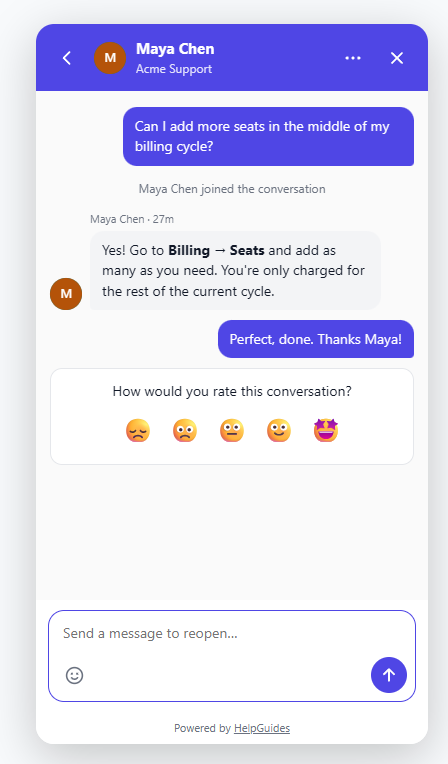
When a conversation is closed, whether a teammate closed it or the visitor said the AI's answer helped, the visitor is asked How would you rate this conversation? with five faces from 😞 to 🤩, then thanked for their feedback. Writing again reopens the conversation, and the AI answers first, just like a new conversation.
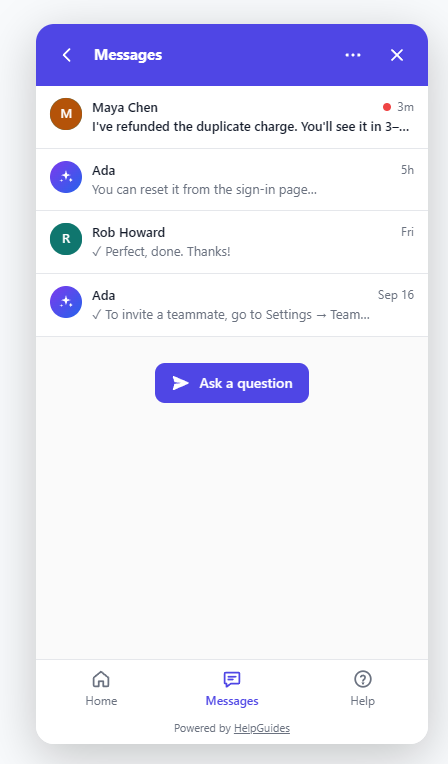
The Messages tab lists every conversation with who wrote the last message, a preview and how long ago. The name is whoever actually wrote that message, so if the AI's handoff message is the latest, it shows the AI's name. Closed ones are ticked, and unread ones are bold with a red dot. Its Ask a question button starts a new conversation.
The ⋯ button in the header holds the chat's options:
On small screens the chat opens full-screen, with a back arrow and a close button. Text boxes are sized so phones don't zoom in when they're tapped. The chat fits the visible screen as the browser's toolbars appear and disappear, keeps clear of the notch and home indicator, and scrolling it doesn't scroll the page behind. The ⋯ button appears only when it has something to offer.
The chat follows visitors from page to page. If it was open, it's still open on the next page, on the same screen and conversation, and anything they had typed but not sent is still in the box. Replies that arrive while a page is loading show as unread. With Share visitors across subdomains of set, this also works between subdomains such as www.example.com and docs.example.com. See Installing the Chat Messenger on Your Website.
Visitors don't need to sign up. Visitors never see your team's internal notes, AI summaries, the actions the AI called, or articles from internal knowledge sources. When your site passes a verified signed-in user, their conversations follow them across devices; see Chat Identity Verification for how those conversations are protected.