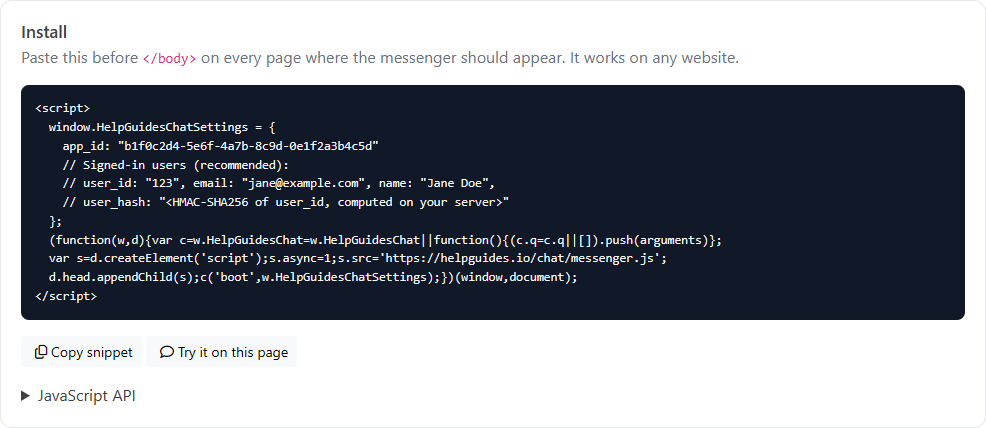
The chat messenger works on any website: WordPress, Webflow, Shopify, a custom app, or your HelpGuides documentation. You add one short script, and a chat button appears in the corner of every page that has it.
The snippet already contains your app ID, which is your project's ID. It looks like this:
If your visitors never sign in, a one-line install also works:
Paste the snippet just before the closing </body> tag on every page where the messenger should appear. Most sites have one place to do this:
theme.liquid, before </body>The script loads without slowing your page down. The messenger keeps its own look regardless of your site's styles, and your site's styles aren't affected by it.
The messenger only appears while Turn the messenger on is switched on, on the General tab. When it's off, the snippet shows nothing, so you can install it before you go live.
Visitors see Home and Messages tabs, plus a Help tab for browsing and searching your help center when Show help articles in the messenger is on. The chat follows visitors from page to page: if it was open, it's still open on the next page, on the same conversation, with anything half-typed still in the box. See What Visitors See in the Chat Messenger.
If visitors sign in to your site or app, pass who they are. Your team then sees their name and email, their conversations follow them across devices, and the messenger greets them by first name ("Hi Jane 👋"):
window.HelpGuidesChatSettings = {
  app_id: "YOUR_APP_ID",
  user_id: "12345",
  email: "[email protected]",
  name: "Jane Doe",
  user_hash: "…"   // required to link conversations — see Chat Identity Verification
};
Always include user_hash for signed-in users. See Chat Identity Verification. When a user signs out, call HelpGuidesChat('shutdown') so the next person on that browser starts fresh. Otherwise they could see the previous user's conversations, and actions set to Only for signed-in customers would still run as the previous user.
Add attributes to show extra details about the visitor to your team in the inbox, such as their plan or company. Chat Actions can also use an attribute as a parameter, for example the account a signed-in customer belongs to. Attributes come from the browser and aren't signed, so never rely on one alone to decide whose data an action returns.
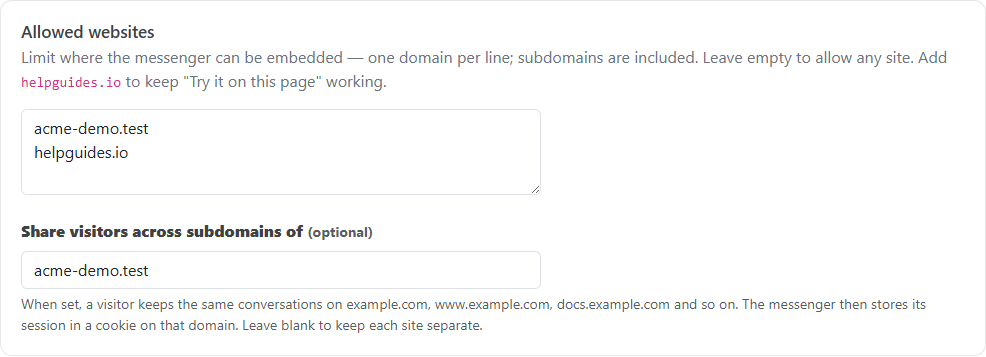
attributes: { plan: "Business", company: "Northwind" }Browsers keep chat sessions separate for each domain, so www.example.com and docs.example.com would each have their own visitor and conversations. To share one visitor across them, go to the Install & security tab and, under Allowed websites, set Share visitors across subdomains of (for example, example.com). Or add cookie_domain: "example.com" to the snippet. The messenger then keeps the visitor's session in a cookie on that domain.
On the Install & security tab, under Allowed websites, list the domains that may show your messenger, one per line. Subdomains are included. Leave it empty to allow any site. If you set it, add helpguides.io too so Try it on this page keeps working.
[HelpGuides Messenger] message. The usual causes are that the messenger is switched off, the site isn't in Allowed websites, or Require verification is on and the user_hash is missing or wrong. See Troubleshooting Chat.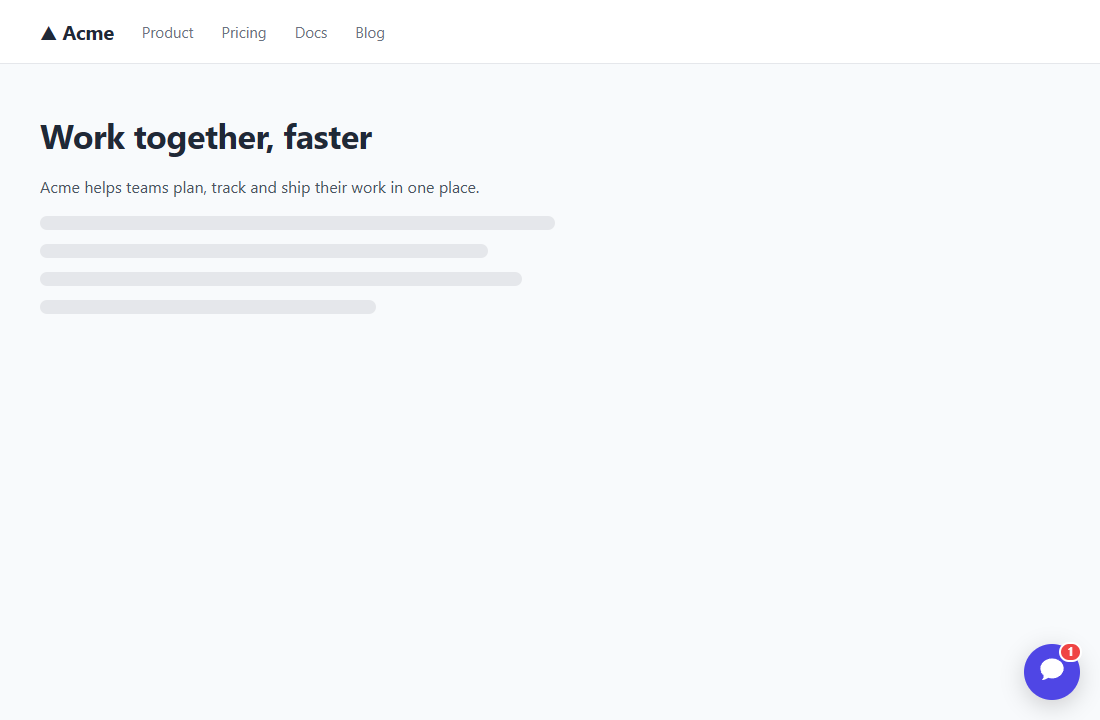
To control the messenger from your own buttons and links, or to send customers a link that opens the chat (?chat=1), see Chat Messenger JavaScript API. Back to Setting Up Chat.