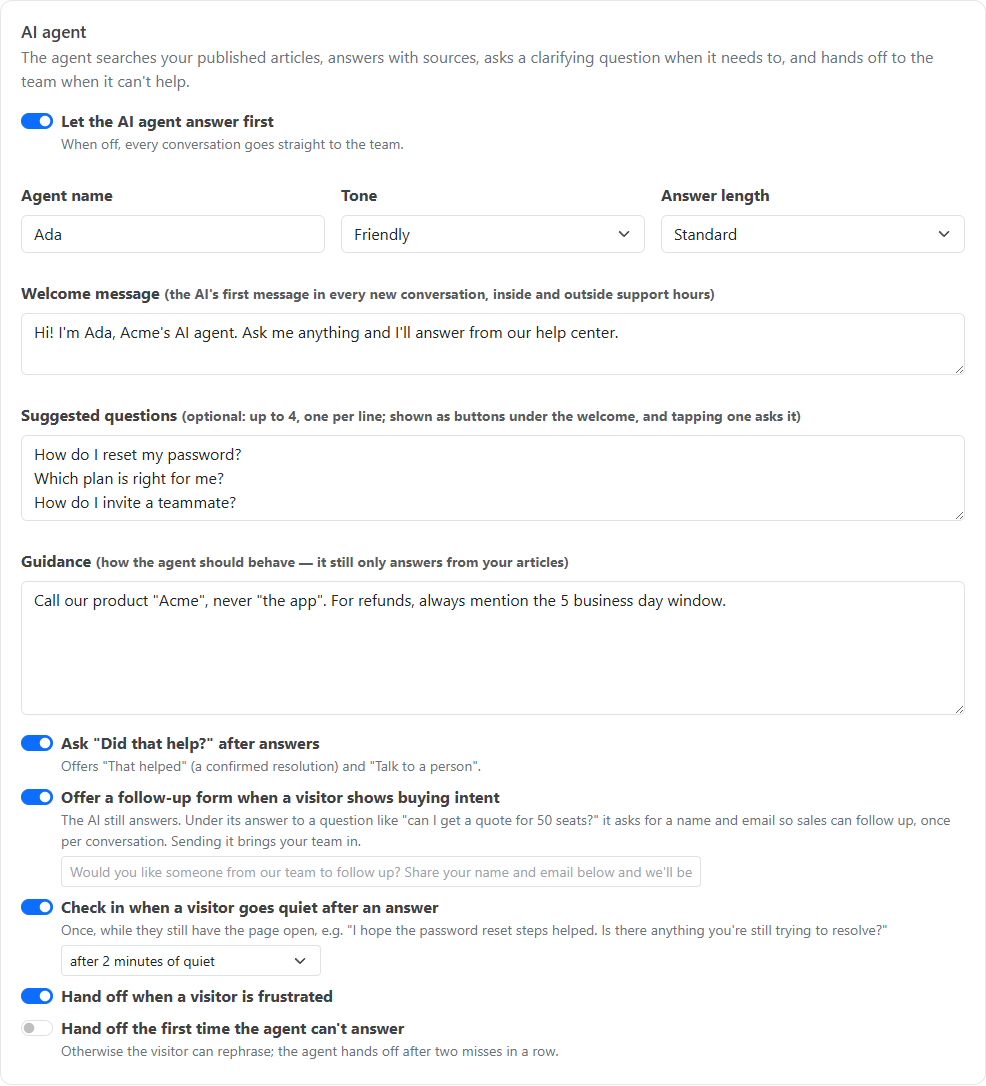
The AI agent answers visitors first, using only your published HelpGuides articles. You control its name, tone and length, give it guidance, and decide when it hands off to your team. Go to Inbox, then Messenger settings, then the AI agent tab. Click Save settings when you're done.
While the AI works, the visitor sees a short status such as "Thinking…" that changes every couple of seconds until the answer starts.
If your articles don't contain the answer, the AI says so and offers the team. It never uses outside knowledge and never guesses. If a question could mean several things, it asks one short clarifying question first. It replies in the visitor's language.
| Setting | Default | What it does |
|---|---|---|
| Let the AI agent answer first | On | Off sends every conversation straight to your team |
| Agent name | AI Agent | Shown to visitors with an "AI" label |
| Tone | Friendly | Friendly, Professional, Neutral or Playful |
| Answer length | Standard | Concise (up to about 3 sentences), Standard (about 150 words) or Thorough (about 300 words) |
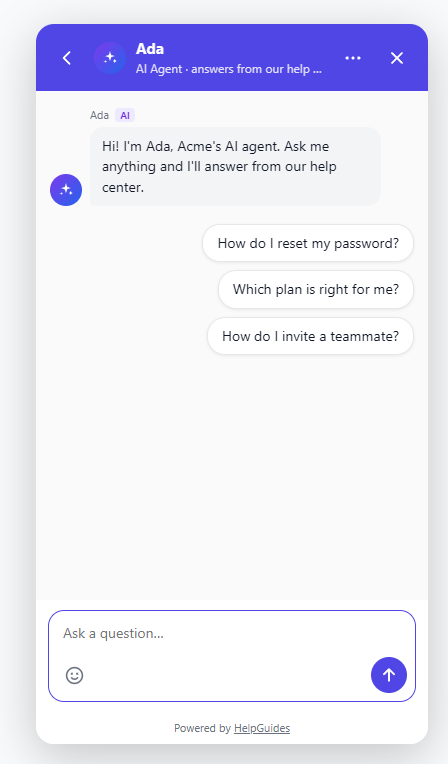
| Welcome message | (blank) | The AI's first message in every new conversation, inside and outside support hours, for example "Hi! I can answer any questions you have about our product: features, pricing and plans, and technical questions." If blank, a general introduction is shown. An out-of-hours welcome, if you write one, replaces it outside hours. |
| Suggested questions | (blank) | Up to 4, one per line. Shown as buttons under the welcome; tapping one asks it. |
| Guidance | (blank) | Instructions for how the AI should behave, up to 4,000 characters |
| Ask "Did that help?" after answers | On | Shows the That helped and Talk to a person buttons |
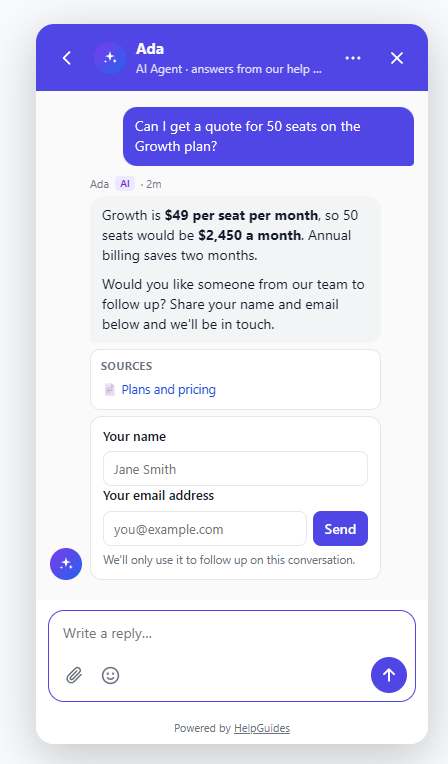
| Offer a follow-up form when a visitor shows buying intent | On | Under its answer to a buying question, the AI asks for a name and email so sales can follow up. See Follow-up form for buying questions below. |
| Check in when a visitor goes quiet after an answer | On, after 2 minutes | Sends one short follow-up about the answer while the visitor still has the page open |
| Hand off when a visitor is frustrated | On | Brings in your team when a visitor is upset or the answers aren't helping |
| Hand off the first time the agent can't answer | Off | When off, the AI hands off after two unanswered questions in a row |
Suggested questions give visitors a quick start. Pick the questions visitors ask most, for example "How do I import contacts?" or "What's included in the free trial?". A proactive message can have its own suggested questions.
When a visitor goes quiet after an answer, the AI sends one short follow-up about that answer, for example "I hope the password reset steps helped. Is there anything you're still trying to resolve?", with That helped and Talk to a person buttons. Choose how long to wait, from 1 to 10 minutes. A check-in is only sent while the messenger is open on the visitor's screen, typing resets the timer, and there are at most two per conversation. There's no check-in once your team is handling the conversation.
When a visitor asks something like "can I get a quote for 50 seats?", "can we book a demo?", pricing for their volume, or to talk to sales, the AI still answers. Under its answer it adds a short prompt with a form for Your name and Your email address. You can edit the prompt; the default is "Would you like someone from our team to follow up? Share your name and email below and we'll be in touch."
When a visitor sends a screenshot or document, the AI is told what was attached, for example error.png (image), but it can't open files. If the file matters, it asks the visitor to describe it. See Sending Files and Images in Chat.
Guidance shapes how the AI answers, not what it knows. It still answers only from your articles. Good guidance is short and specific:
Guidance applies to everything the AI writes: answers, small talk, "glad I could help" replies and check-ins. To give instructions for one topic only, use a question rule with Answer, following this guidance.
If the AI keeps getting a topic wrong, the best fix is usually a clearer article, not more guidance.
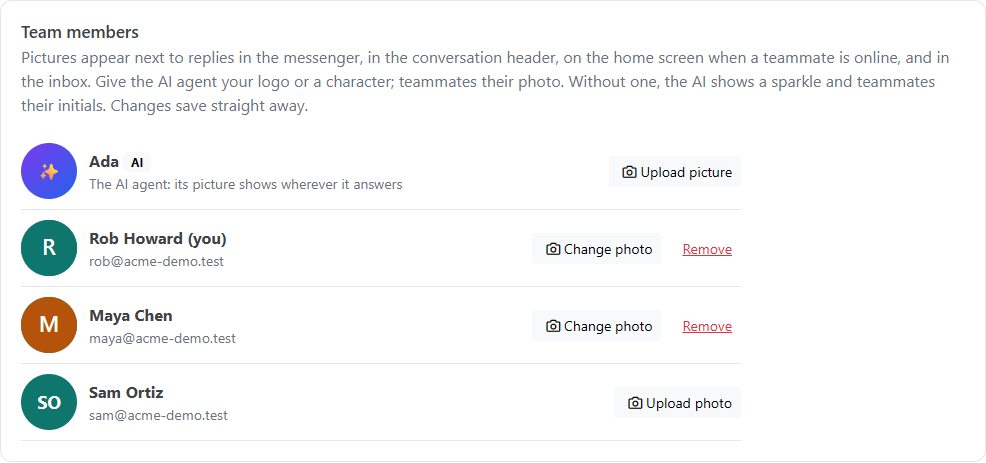
Give the AI agent your logo or a character on the Team members tab: click Upload picture next to the AI agent. The picture shows next to its replies in the messenger, in the conversation header and in the inbox. Without one, the AI shows a sparkle. Pictures save as soon as you upload them.
The conversation goes to your team when:
The visitor is told the team has been brought in. Outside support hours, they're told when the team is back. If you don't have their email, a small form asks for their name and email so the team can follow up; when your team is online, it's offered for visitors who'd rather not wait. If your team was online but nobody has replied within 5 minutes, the AI apologizes for the wait and offers the same form. Your team gets a short AI-written summary of the conversation, and is alerted as set up in Chat Notifications and Teams.
If a visitor asks another question while they're waiting for your team, the AI acknowledges it and asks whether it should try to answer in the meantime (Yes, please answer or No, I'll wait for the team). With Yes, the AI keeps answering until a teammate takes over, and the conversation stays in your team's queue.
Your team can watch every answer as it's written and take over at any moment. See Taking Over a Chat from the AI.
The AI draws on the same structured content that makes your documentation work well with Model Context Protocol.