Support hours tell the messenger when your team is actively staffing chat. The AI agent is your first line of support and keeps answering from your articles around the clock, so outside hours only the wording about people changes: anything that mentions a reply from your team names the next opening time.
Set your hours
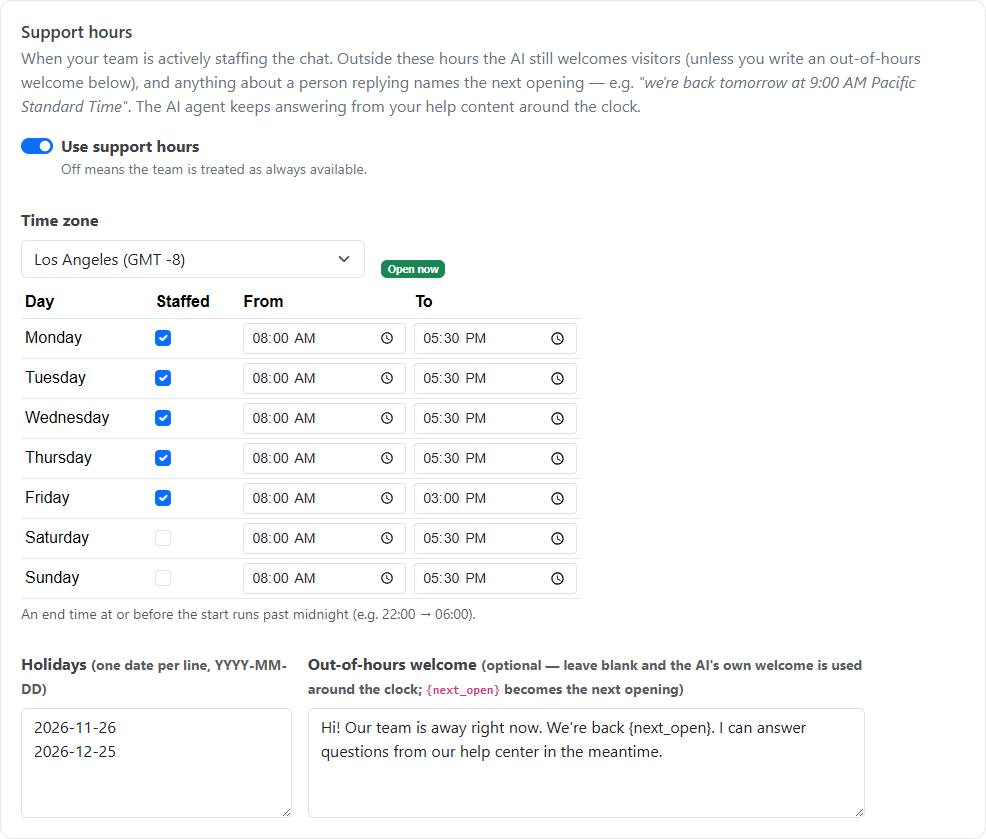
Go to Inbox, then Messenger settings. On the General tab, under Support hours, switch on Use support hours. Support hours are off by default, which means your team is treated as always available.
Field
What to enter
Time zone
The zone your schedule is written in. Pick it from a list of city names grouped by region, for example Chicago (GMT -6), with your own time zone at the top under Your time zone. The offset shown is standard time; daylight saving is handled for you.
Weekly schedule
For each day: staffed or not, and from and to times. An end time at or before the start runs past midnight (22:00 to 06:00).
Holidays
Dates when you're away all day, one per line, as YYYY-MM-DD
Out-of-hours welcome
Optional. Leave it blank and the AI's own Welcome message is used around the clock. If you write one, it replaces the AI's welcome outside hours. {next_open} is replaced with the next opening time.
General tab, Support hours
After you save, the page shows whether you're open right now and, if not, when you're next open.
What changes outside hours
Welcome: with the AI on, new conversations still open with the AI's Welcome message (on the AI agent tab), unless you've written an out-of-hours welcome. With the AI off, visitors get the out-of-hours welcome; if you leave it blank, it reads "Hi! Our team is away right now — we're back {next_open}. Leave a message and we'll get back to you.", where {next_open} becomes, for example, "tomorrow at 9:00 AM Pacific Daylight Time".
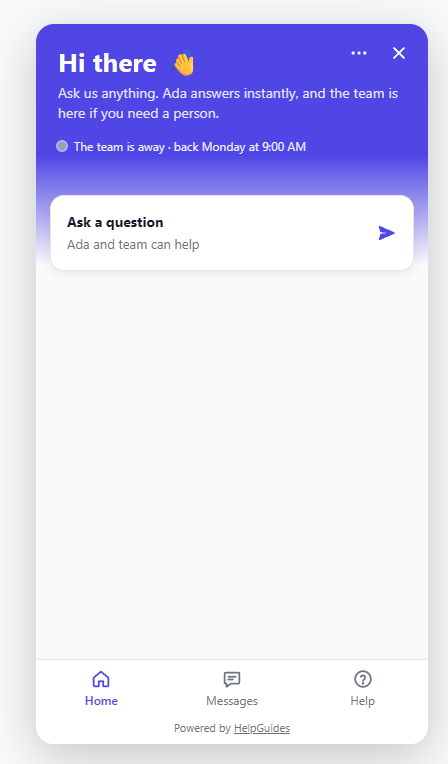
Messenger home screen: shows "The team is away · back Monday at 9:00 AM…".
Expected reply time: becomes "We're back…".
Handoffs: when the conversation goes to your team, the visitor is told when the team is back. If you don't have their email, a small form asks for their name and email so you can follow up.
The AI keeps answering from your help content, and anything that needs a person is picked up when your team returns.
Inbox: your team sees an Outside support hours label in the inbox header.
The Home screen outside support hours
Good to know
A teammate who is Available in the inbox overrides the schedule. While anyone is Available, visitors get the normal reply-time and "someone will be with you shortly" wording, even outside hours.
An inbox left idle for 15 minutes switches its owner to Away automatically, so an unattended browser tab doesn't count as someone being available.
Opening times are written in your time zone, and include its name.
Hours are checked when a page loads or a message is sent. A visitor who leaves a page open across your opening time sees the change on their next page or message.