Chat reports show how much the AI agent resolves on its own, how quickly your team responds, when you're busiest and how many people to have on, and how visitors rate their conversations. They also show what visitors ask about and which questions your documentation doesn't answer yet. Open them from Inbox, then Reports. The reports are split into tabs: Overview, Busy times & staffing, Speed, Quality, AI agent, Team and Sources.
Below is a video overview of the reporting capabilities.
Use the menu at the top right to choose Last 7 days, Last 30 days, Last 90 days or Last 12 months. Every tab uses the same period. A conversation counts in the period it started.
Export CSV downloads every conversation in the period, one row each, for Excel or a BI tool. Each row includes when it started, how it ended, the handoff reason, the first response time, the time to close, the rating and comment, the start page, the proactive message, the country, the device and the type of visitor. Dates are in UTC and durations are in seconds.
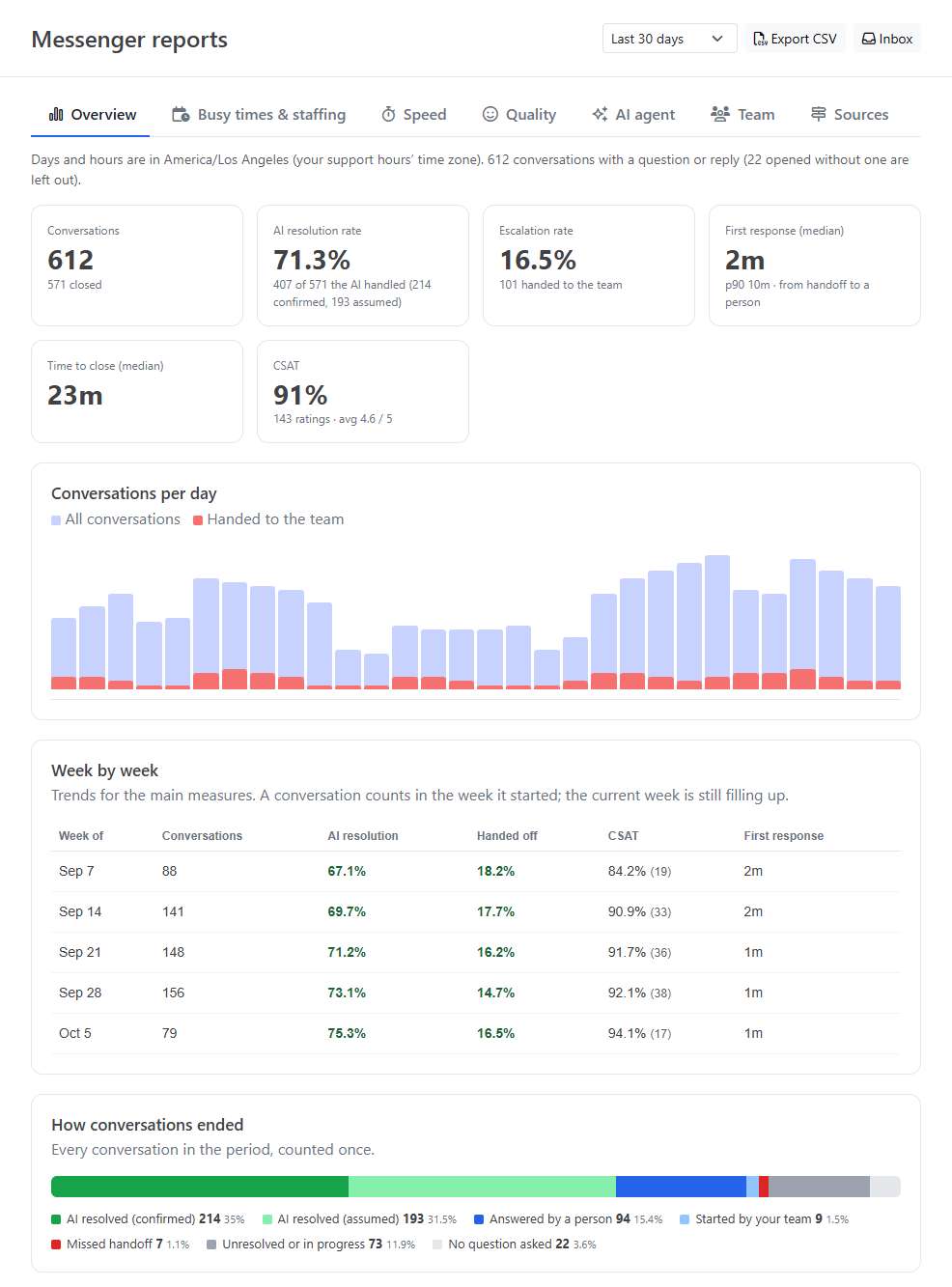
The headline numbers, conversations per day, a week-by-week trend, and how every conversation ended.
| Figure | What it means |
|---|---|
| Conversations | Conversations started in the period, and how many were closed |
| AI resolution rate | Of the conversations the AI answered in, the share it resolved without a person, split into confirmed and assumed (see below) |
| Escalation rate | The share of conversations handed to your team |
| First response (median) | Time from the handoff to the first reply from a person, with the p90 underneath |
| Time to close (median) | Time from the start of a conversation to when it closed |
| CSAT | The share of ratings that were 4 or 5 out of 5, with the number of ratings and the average |
| Conversations per day | Daily volume, with the conversations handed to your team in red |
| Week by week | Conversations, AI resolution, handoffs, CSAT and first response for each week, starting on Monday. The current week is still filling up. |
| How conversations ended | Every conversation in the period, counted once: AI resolved (confirmed or assumed), answered by a person, started by your team, waiting for a person, missed handoff, unresolved or in progress, and no question asked |
Busiest times is a grid of days and hours. Each square is an average per week, and darker squares are busier. Switch what it shows with the buttons above it:
Below the grid you see the Busiest day, the three Busiest hours of the week, the Busiest time of day, the share of conversations Outside support hours (when support hours are on), and Most chats at once: the most conversations one teammate replied in within an hour.
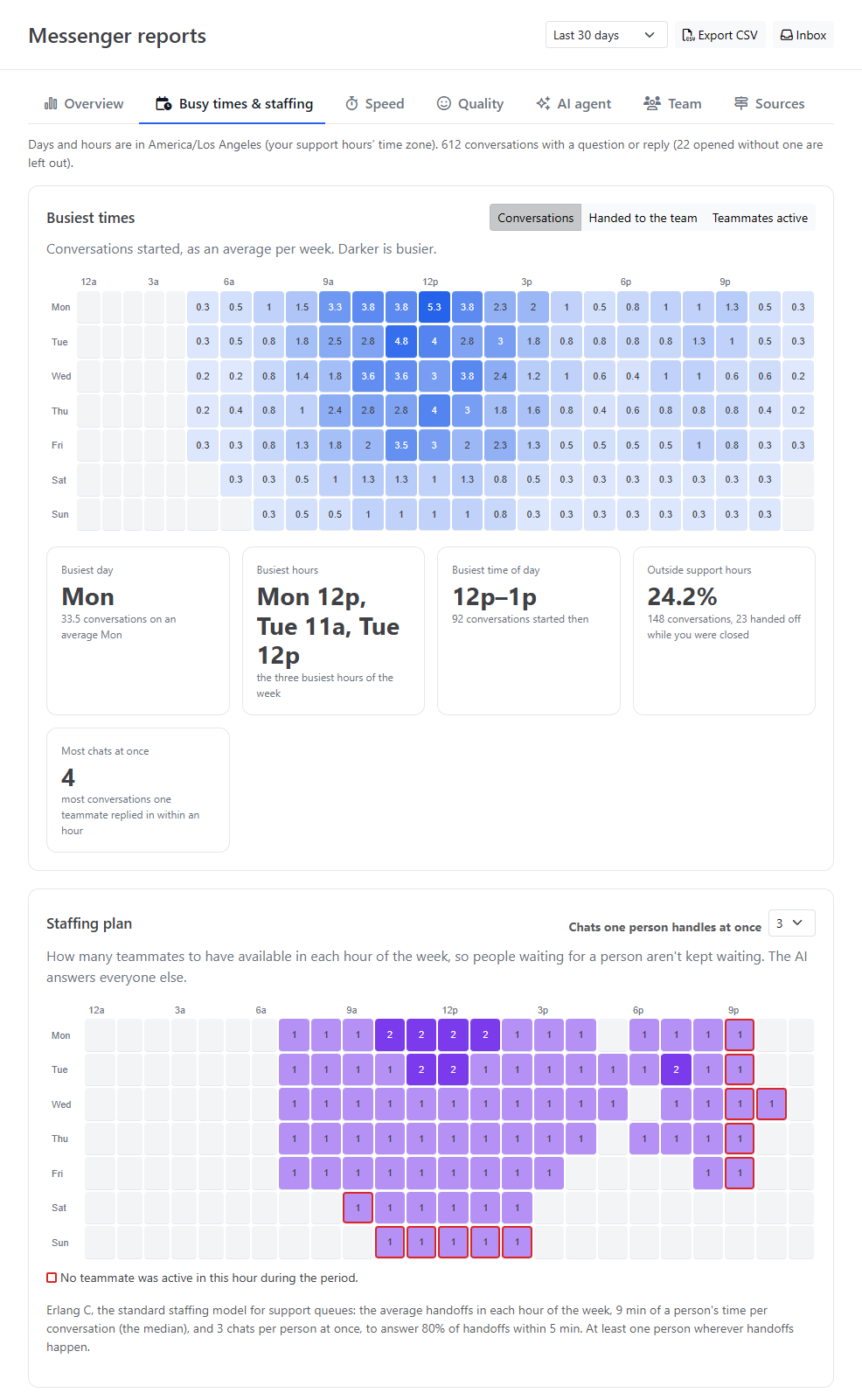
The Staffing plan suggests how many teammates to have available in each hour of the week. The AI answers everyone else, so you only need people for the conversations handed to your team. The plan aims to answer 80% of handoffs within 5 minutes.
It uses Erlang C, the standard staffing model for support queues. It looks at three things: the average number of handoffs in that hour, how long a person spends on a conversation, and how many chats one person handles at once. Set the last one with Chats one person handles at once (3 by default). Every hour that has handoffs gets at least one person.
How long visitors wait, both for any answer and for a person.
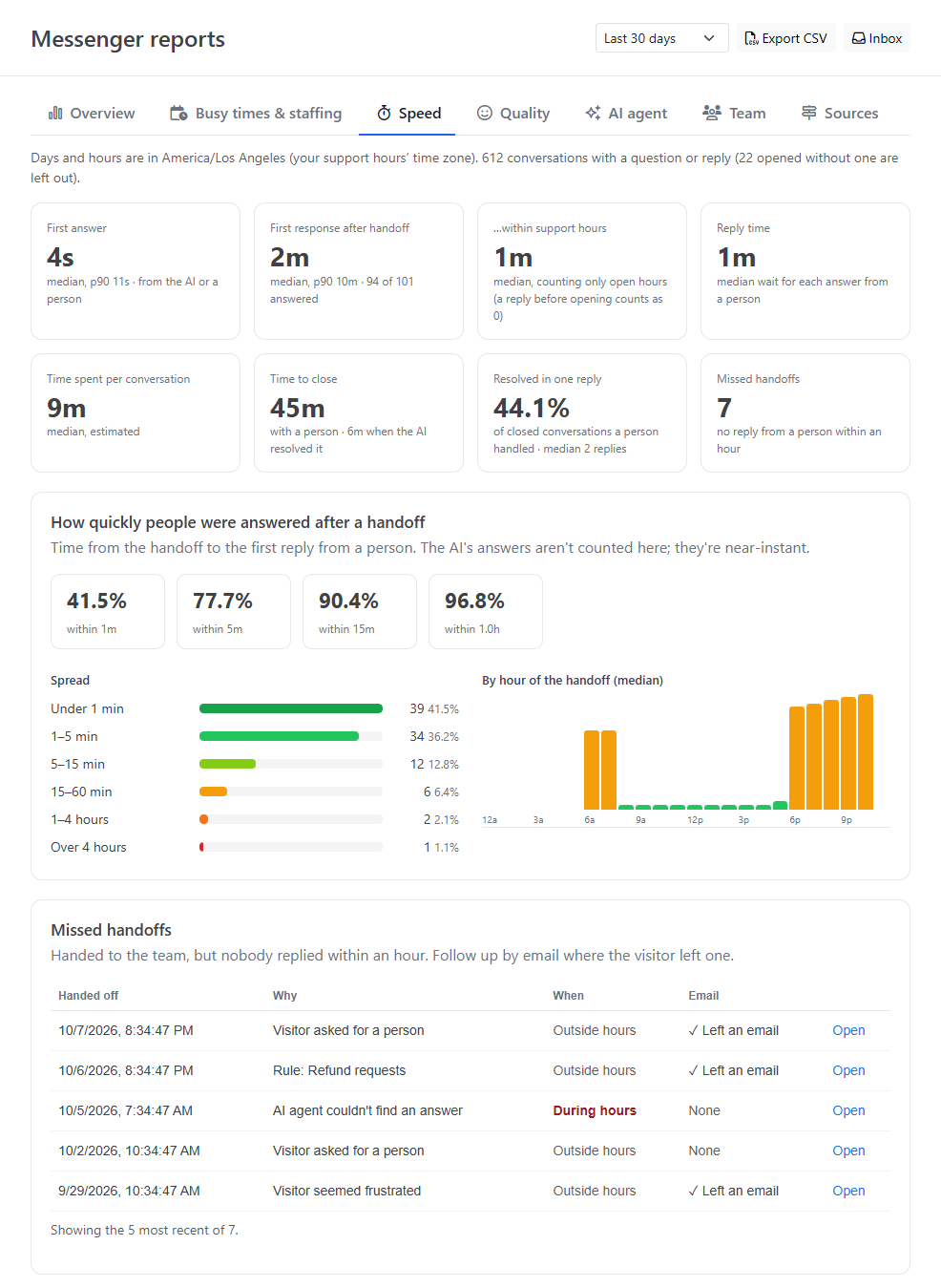
| Figure | What it means |
|---|---|
| First answer | Time from the visitor's first message to the first answer from the AI or a person |
| First response after handoff | Time from the handoff to the first reply from a person, and how many handoffs were answered |
| …within support hours | The same, counting only the time you were open. A handoff on Friday evening that's answered on Monday morning counts only the minutes after opening, and a reply sent before opening counts as zero. Shown when support hours are on. |
| Reply time | How long visitors waited for each answer from a person |
| Time spent per conversation | An estimate of a teammate's time: a minute for each message from your team, plus the time between them, up to 10 minutes per gap |
| Time to close | Start to close for conversations a person handled, and for ones the AI resolved |
| Resolved in one reply | Of the closed conversations a person handled, the share closed after one reply from your team. Several messages in a row count as one reply. |
| Missed handoffs | Conversations handed to your team that got no reply from a person within an hour |
How quickly people were answered after a handoff shows the share of handoffs answered within 1, 5, 15 and 60 minutes, how the response times were spread, and the median by the hour of the handoff. It shows you the hours when visitors wait longest.
Missed handoffs lists the most recent ones, with the reason for the handoff, whether it happened during or outside support hours, and whether the visitor left an email. Click Open to go to the conversation and follow up.
Visitors can rate a conversation when it closes. CSAT is the share of ratings that were 4 or 5 out of 5.
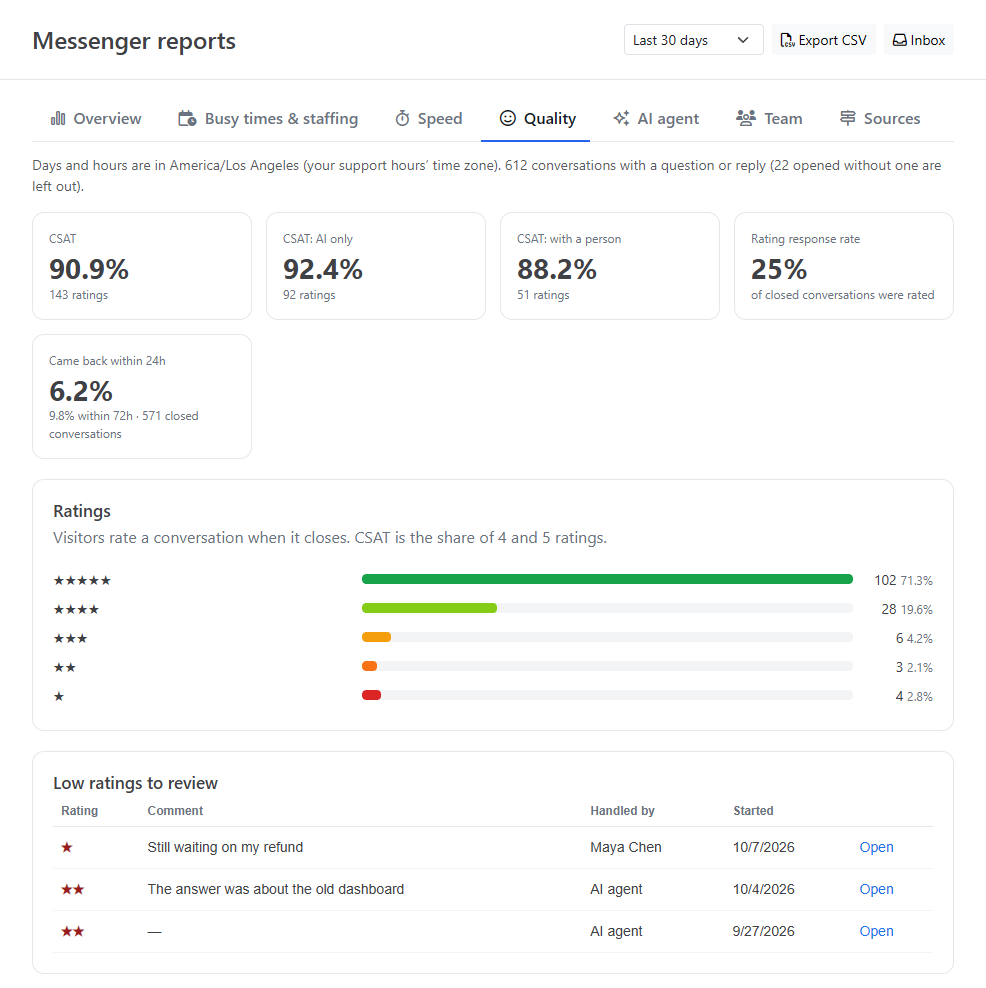
| Figure | What it means |
|---|---|
| CSAT | All ratings in the period |
| CSAT: AI only | Conversations no person took part in |
| CSAT: with a person | Conversations a teammate handled |
| Rating response rate | The share of closed conversations that were rated |
| Came back within 24h | The share of closed conversations where the same visitor started a new one within 24 hours, with the figure for 72 hours underneath. A high rate suggests problems that only looked solved. |
| Ratings | How many ratings of each star there were |
| Low ratings to review | The latest 1 and 2 star ratings, with the comment, who handled the conversation, and a link to open it |
How the AI agent is doing, what it costs, and where your content can help it do better.
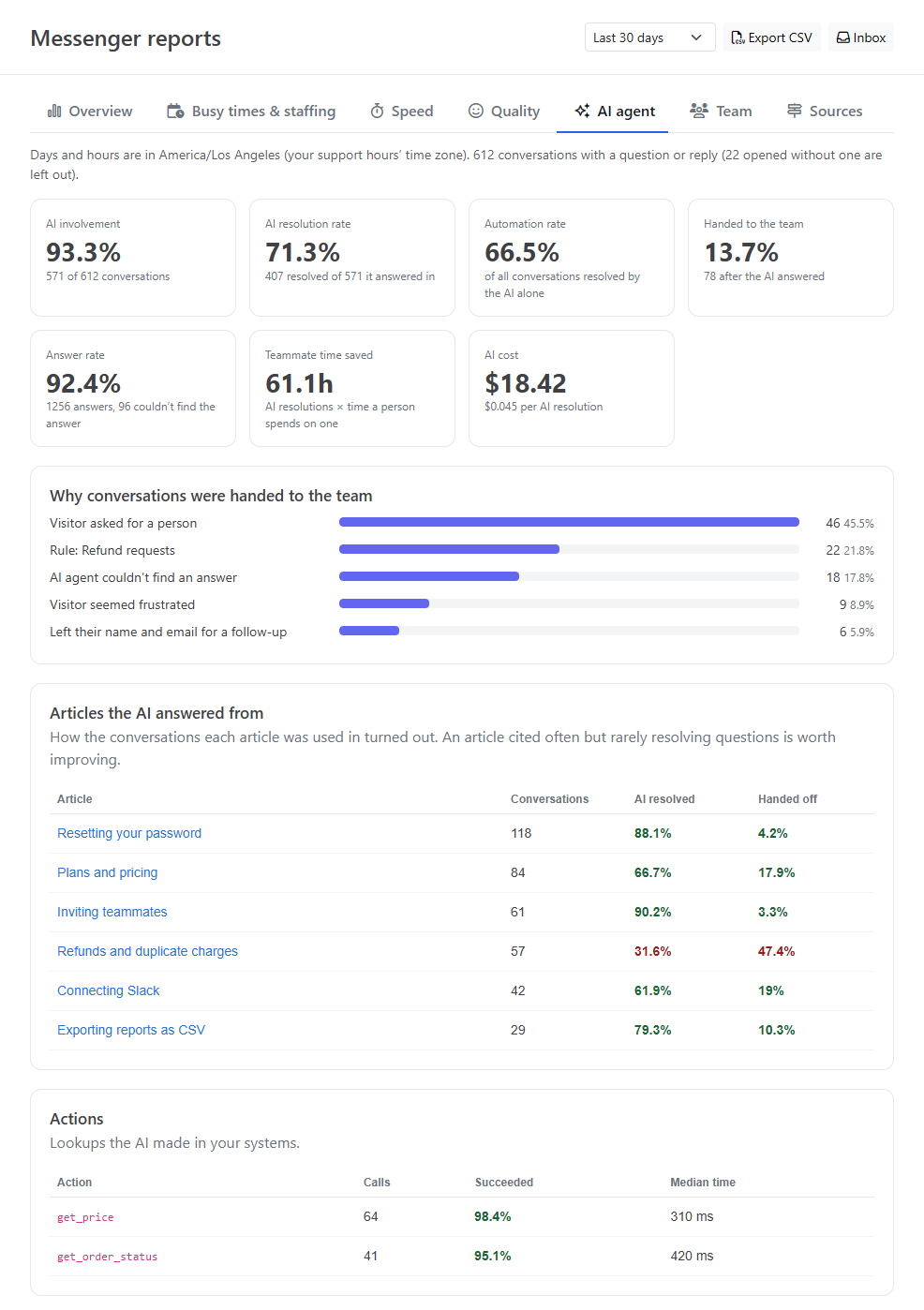
| Figure | What it means |
|---|---|
| AI involvement | The share of conversations the AI answered in |
| AI resolution rate | Of those, the share the AI resolved without a person |
| Automation rate | The share of all conversations the AI resolved on its own. It's the involvement multiplied by the resolution rate. |
| Handed to the team | Of the conversations the AI answered in, the share later handed to a person |
| Answer rate | The share of the AI's answers where it found the answer in your content |
| Teammate time saved | An estimate: the AI's resolutions multiplied by the time a person usually spends on a conversation |
| AI cost | What the AI cost for chat in the period, and the cost per AI resolution |
Topics shows what visitors come to the messenger about. Click Analyze topics: the AI takes the opening question of each conversation in the period (up to 400) and groups them into topics, such as Password Reset, Pricing or Cancel Account. It takes a few seconds. For each topic you see:
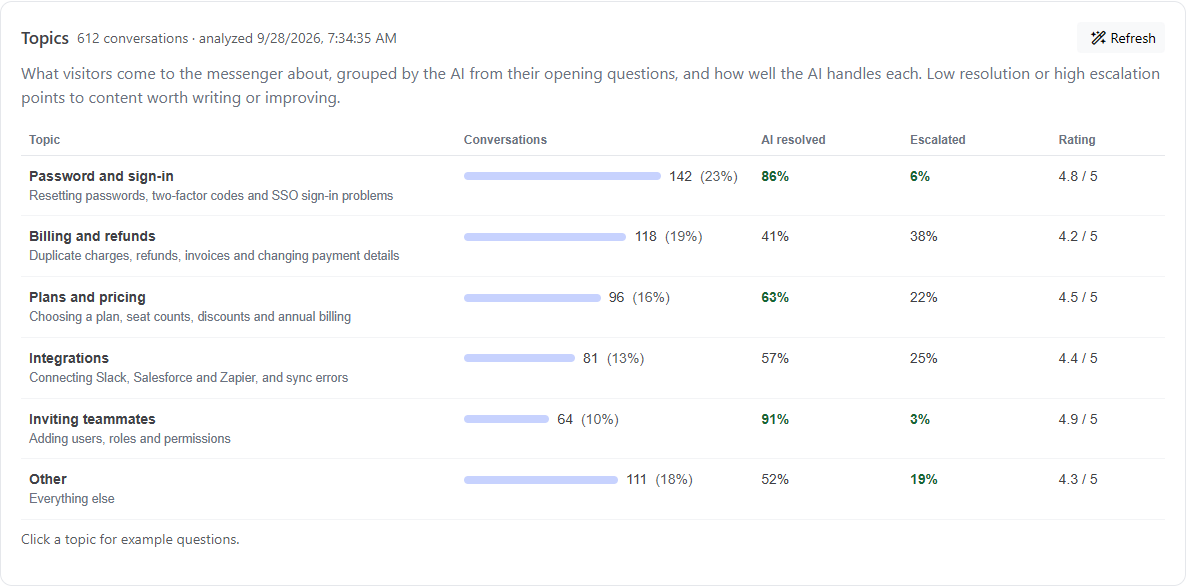
Click a topic to see example questions, each linking to its conversation. A topic with a low resolution rate or a high escalation rate is worth a new article, a question rule or an action.
Each period's analysis is saved until you click Refresh, so it doesn't change on its own as new conversations come in.
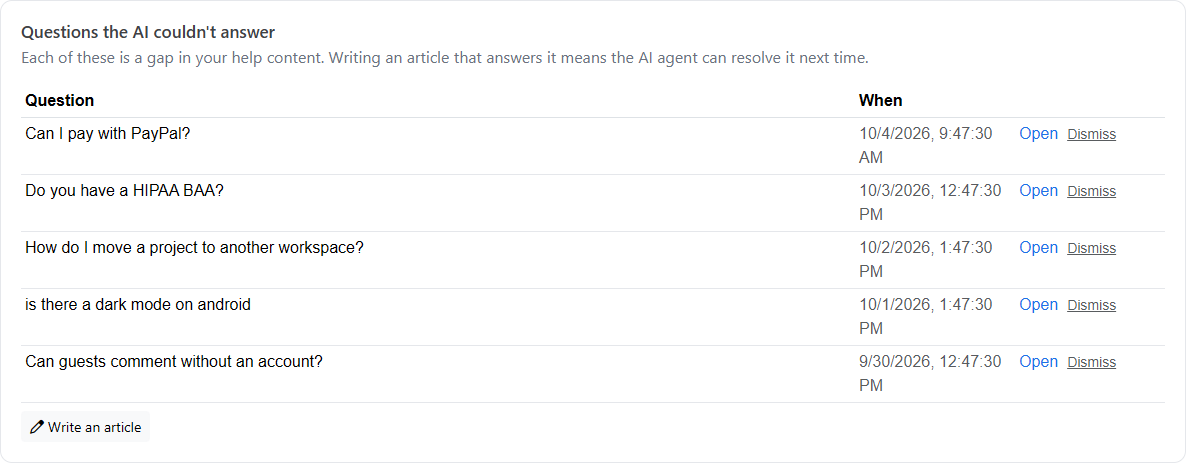
This list shows the visitor's exact words each time the AI couldn't find an answer in your articles. Each one is a gap in your documentation. Write an article that answers it, publish it, and the AI can resolve that question next time. Click Open to read the whole conversation. Click Dismiss to remove a question you won't write an article for, such as spam, something off-topic, or a question you've already covered. Dismissing only takes it off this list; the conversation is kept.
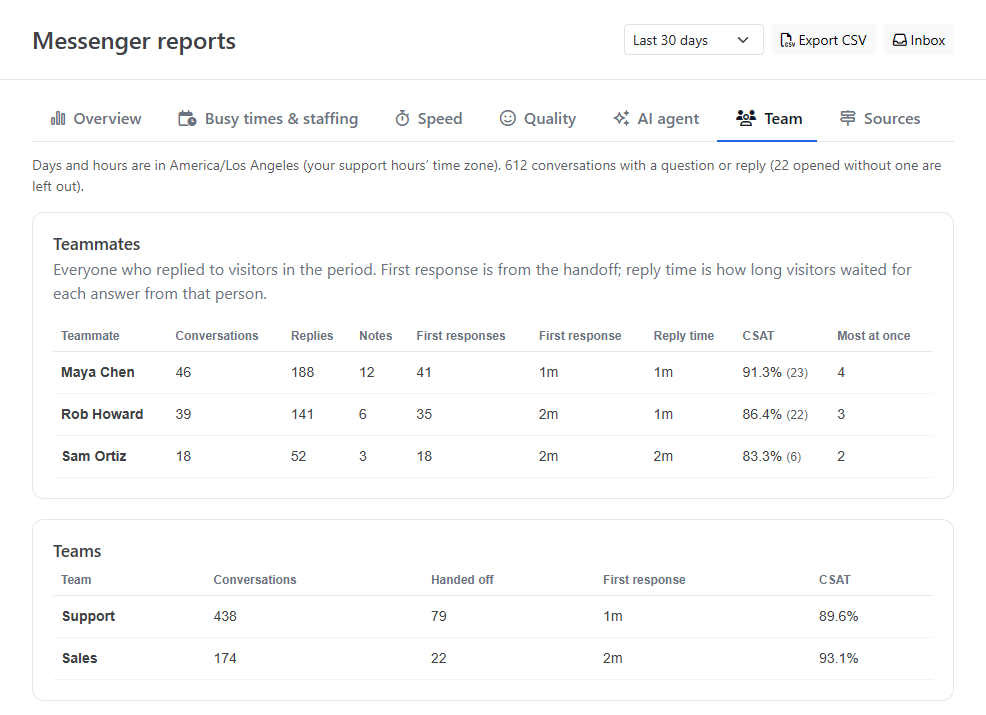
Teammates lists everyone who replied to visitors in the period, with their conversations, replies, internal notes, first responses and the median First response after a handoff, their Reply time, their CSAT, and Most at once: the most conversations they replied in within one hour. When you have more than one team, Teams shows conversations, handoffs, first response and CSAT for each.
Where conversations start and who starts them.
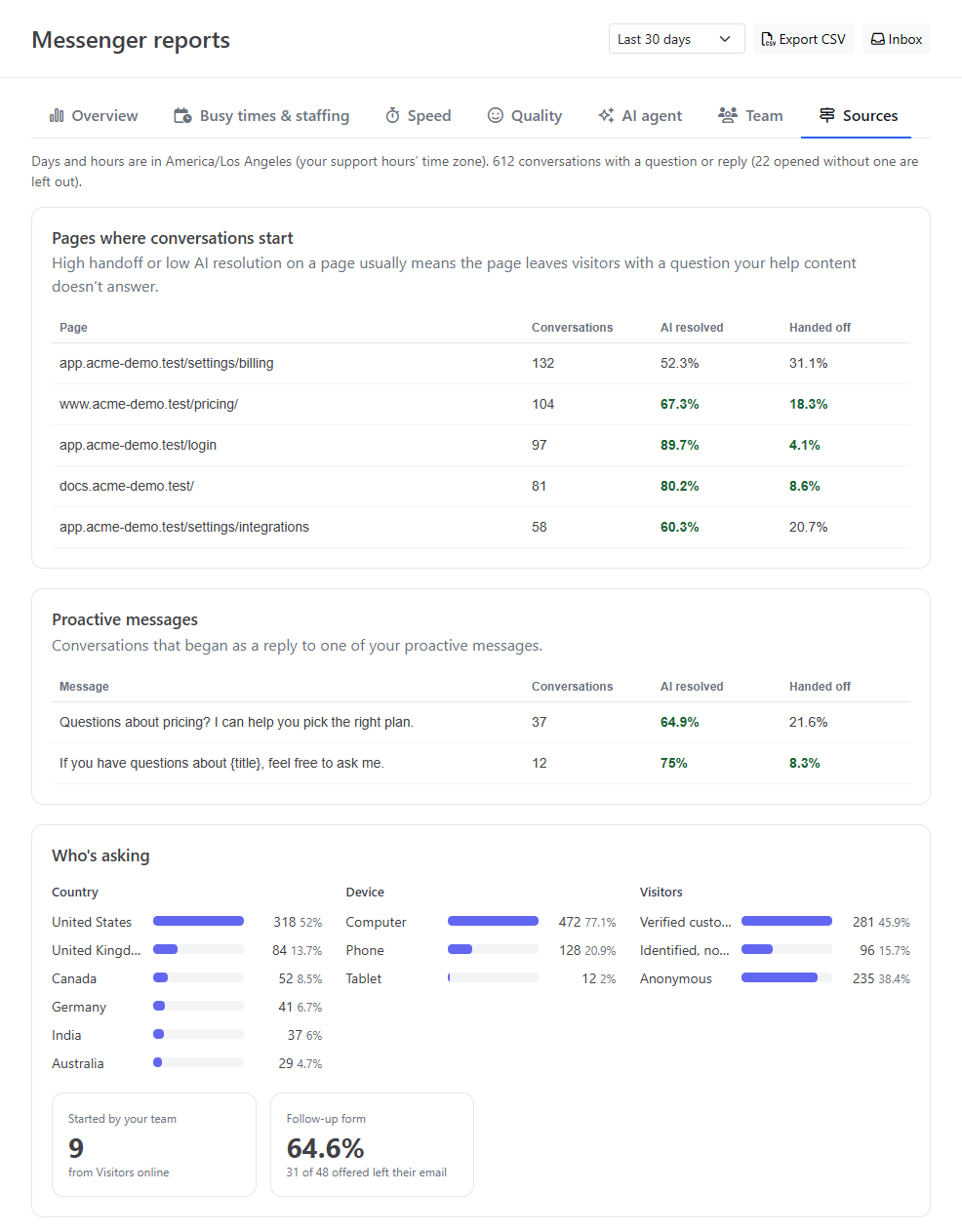
For article-level insights, such as most-viewed and least-helpful articles, see the Dashboard. To make the AI search the right content, see Chat Knowledge Sources.