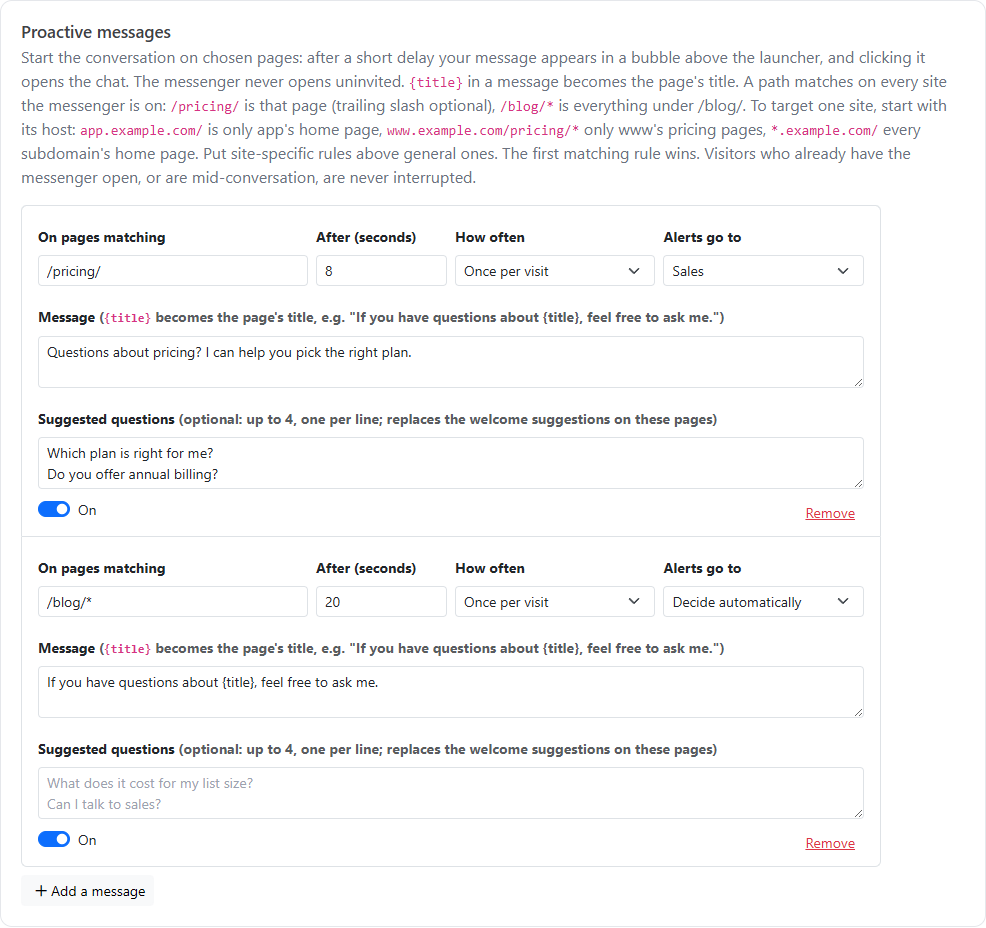
Proactive messages let the messenger start the conversation on pages you choose. For example, visitors to your pricing page could see "Questions about pricing? I can help you pick the right plan." after a few seconds. Set them up under Inbox, then Messenger settings, then the Proactive messages tab.
Click Add a message, fill in the fields below, and click Save settings. You can have up to 20 proactive messages.
Every proactive message appears as a bubble above the chat button, on computers and phones alike. The messenger never opens on its own: the visitor clicks the bubble to open the chat with your message.
| Field | Meaning |
|---|---|
| On pages matching | The page or pages to show it on. See Choosing pages below. |
| After (seconds) | How long the visitor is on the page before the message appears (0–120) |
| How often | Once per visit, Once per visitor, ever, or Every time |
| Alerts go to | The team that conversations started from this message are routed to, or Decide automatically to use the usual routing. A team you've just added can be picked once it's saved. |
| Message | What the AI agent says, up to 500 characters. {title} is replaced with the page's title. See Using the page title below. |
| Suggested questions | Optional. Up to 4, one per line. They appear as buttons under your message, and replace the messenger's usual suggested questions on these pages. |
| On | Turn a message off to keep it without using it. Remove deletes it. |
A path on its own matches on every site the messenger is installed on:
/pricing/ matches that page, with or without the trailing slash./blog/* matches every page under /blog/, such as /blog/my-post/, but not the blog's home page /blog/ itself. * stands for at least one character. To include the home page too, add a message for /blog/, or use /blog*.To target one site, start the pattern with its host:
app.example.com/ matches only that site's home page.www.example.com/pricing/* matches only that site's pricing pages.*.example.com/ matches the home page of every subdomain.app.example.com, means its home page.If you paste a full address, the https:// is removed. Matching ignores capitalization and query strings. The first message in the list that matches a page is the one used, so put site-specific messages above general ones. Team page lists in Chat Notifications and Teams use the same patterns.
Put {title} in a message and it becomes the title of the page the visitor is on. That lets one message work across many pages. For example, a message on /blog/* can say "If you have questions about {title}, feel free to ask me."
Each message has a When a visitor replies, the AI… box. These settings suit a blog in particular: visitors ask about the post they're reading, and you'd like to point them to your product documentation too.
| Setting | What it does |
|---|---|
| Also answers from | Another project in your account that the AI searches too, in these conversations only, such as your blog. It doesn't have to be one of your knowledge sources, so other chats aren't affected. |
| Reads the page they're on | The AI is given the article the visitor was reading when they started the chat, so a question like "when was the first smartphone?" on a smartphone-history post is answered from that post. It works when the page is a published article in the project above or in one of your knowledge sources. |
| Suggests related help articles | After answering, the AI ends with a short line linking up to two articles from your knowledge sources that fit what the visitor is reading about. It skips this when nothing fits, and never links the page they're already on. |
For example, a message on /blog/* that says "Have questions about {title}? Just ask me, I can help.", with Also answers from set to your blog and both options on: a reader of a post on the history of smartphones gets answers from that post, plus a pointer to your guide on text-message marketing when it's relevant.
The AI only ever reads your published articles: the page is found from its address, never from text sent by the browser. These settings apply to every AI answer in the conversation, and to Draft with AI in the inbox.
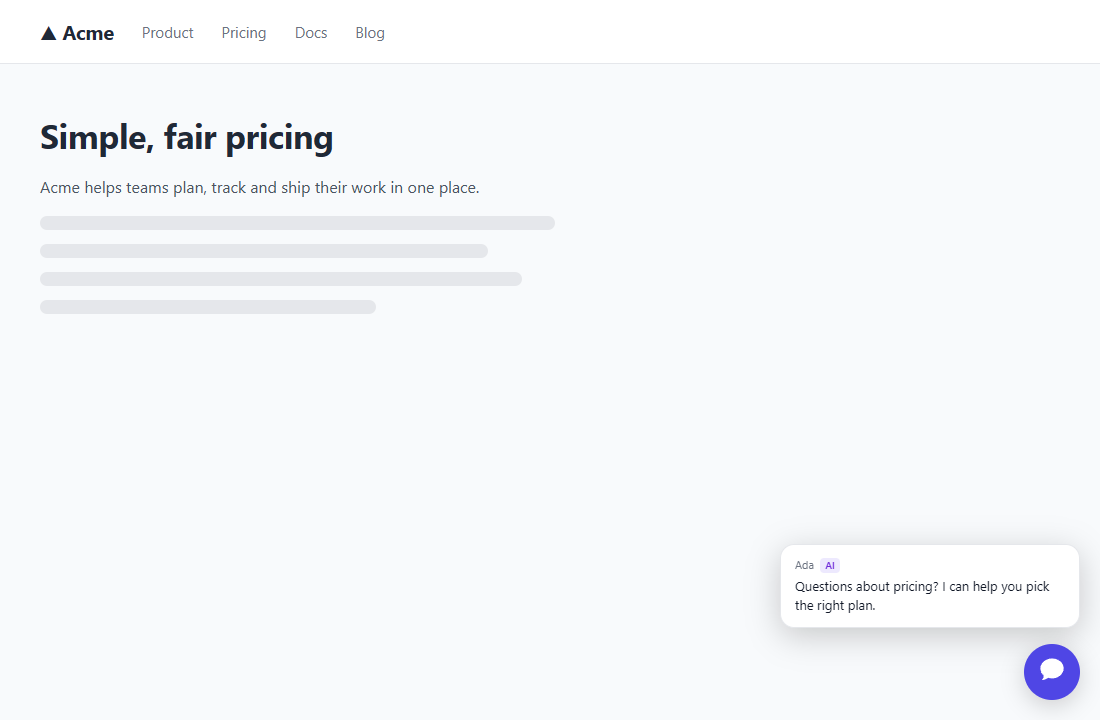
Your message becomes the first line of the conversation, so the AI and your team see what the visitor was responding to. The conversation goes to the team you chose under Alerts go to, and the new-chat alert notes that it came from a proactive message.
Proactive messages are automatic. Your team can also start a conversation with a particular visitor from Visitors online in the inbox. See Using the Chat Inbox.
/pricing/: "Questions about pricing? I can help you pick the right plan." Alerts go to Sales, with suggested questions such as "What does it cost for my list size?" and "Can I talk to sales?"/request-a-demo/: "Want a quick answer before you book a demo? Ask me anything."/blog/*: "If you have questions about {title}, feel free to ask me."app.example.com/: "Welcome back! Ask me anything about your account." Placed above any general home page message, so only your app's home page gets it./docs/getting-started*: "New here? Ask me anything about getting set up."See also Chat Notifications and Teams and What Visitors See in the Chat Messenger.