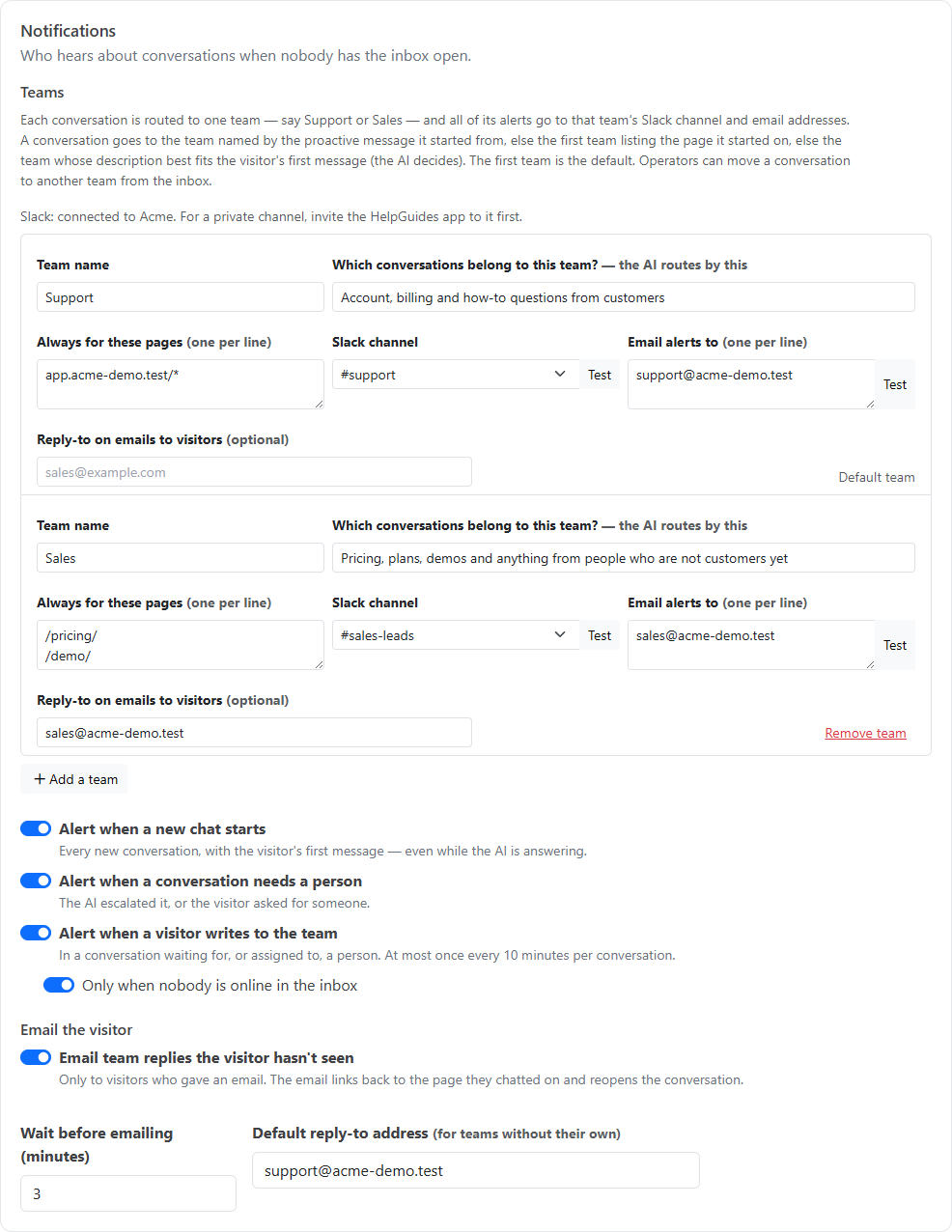
Notifications make sure someone hears about a conversation even when nobody has the inbox open. Alerts go to teams, such as Support and Sales, and each team has its own Slack channel and email addresses. Set them up under Inbox, then Messenger settings, then Notifications.
Every conversation is routed to one team, and all of its alerts go to that team. Each team has:
| Field | What it's for |
|---|---|
| Team name | For example "Support" or "Sales". Shown in alerts and in the inbox. |
| Which conversations belong to this team? | A short description the AI uses to route conversations, for example "Prospects: pricing, plans, demos, trials, comparisons". |
| Always for these pages | Optional page patterns, one per line, such as /pricing/* or /request-a-demo/. Chats started there always go to this team. A pattern that starts with a host only matches that site, for example app.example.com/*. |
| Slack channel | Where this team's alerts post. Test sends a test message. |
| Email alerts to | This team's email addresses, one per line. Test sends a test email. |
| Reply-to on emails to visitors | Optional. For example [email protected], so replies to follow-up emails reach this team. |
The first team is the default. Click Add a team to add more.
A teammate can move a conversation to another team from the inbox. Its later alerts then go to the new team.
Slack alerts use your project's Slack connection. Connect Slack in your project's Settings, then pick a channel for each team. Public channels work straight away. For a private channel, invite the HelpGuides app to it first.
| Setting | Default | What it does |
|---|---|---|
| Alert when a new chat starts | On | Every new conversation, with the visitor's first message, even while the AI is answering. It also says when the chat came from a proactive message. |
| Alert when a conversation needs a person | On | When the AI hands off, or the visitor asks for someone. Also covers the alert when a visitor leaves their details for a follow-up (see below). |
| Alert when a visitor writes to the team | On | When a visitor writes in a conversation waiting for, or assigned to, a person. At most once every 10 minutes per conversation. |
| Only when nobody is online in the inbox | On | Skips the alert above while a teammate has the inbox open and is Available |
When a visitor fills in the name-and-email follow-up form in a conversation that's already with your team, the team gets "Jane Smith left their details for a follow-up", with their name, email and last question. It goes to the conversation's team in Slack, by team email and as a phone push (under Needs a person). It's sent under Alert when a conversation needs a person, whoever is online. When the form is sent under an AI answer to a buying question, it hands the conversation to your team instead, and you get the usual "needs a person" alert.
Each Slack alert shows who the visitor is, why the alert was sent, their latest message and the page they're on, with an Open in inbox button. Email alerts link to the conversation the same way. When the visitor hasn't said who they are, alerts read "New chat with unknown visitor". When a message has files or images attached, the alert names them.
Alerts and email subjects start with your messenger's Team name, set on the General tab. If you leave it blank, your account's name is used, or else the project's name without words like "Documentation", "Docs" or "Help Center", so "DailyStory Documentation" becomes "DailyStory". With more than one team, alerts show the team's name too, for example [Acme · Sales] in an email subject.
Push notifications on phones are separate from team alerts. Each teammate turns them on for their own phone and chooses which alerts that phone gets, whatever the team's Slack and email settings are. See Using the Chat Inbox on Your Phone.
With Email team replies the visitor hasn't seen on (the default), a teammate's reply that the visitor hasn't seen is emailed to them, if they gave an email. The email includes a link that reopens the chat on the page they were on. When the email goes out depends on whether the visitor is still on your website, shown in the Status row of the inbox details panel:
Set a Default reply-to address for teams without their own. Replies to these emails go to the reply-to address. They don't come back into the chat.
Team alerts and visitor emails are sent from [email protected], with your team's name as the sender name, for example "Acme Support". If a Test says Test email sent but nothing arrives, the receiving mailbox is refusing or holding it. Group addresses and filtered mailboxes often only accept mail from known senders, so add [email protected] as an allowed sender or contact, and check the group's pending or quarantine queue. See Troubleshooting Chat.
See also Chat Support Hours and Using the Chat Inbox.