Add ChatGPT as an MCP Connector

HelpGuides natively supports Model Context Protocol (MCP), which means you can connect your documentation directly to ChatGPT. Once connected, ChatGPT can search, retrieve, and reference your documentation in real time, and draft and update articles for you to review, without crawling or indexing.
What you'll need
- A HelpGuides project with Enable Model Context Protocol turned on
- Your project's MCP URL
- A ChatGPT Plus, Pro, Business, Enterprise or Education plan, using ChatGPT on the web
Finding your MCP URL
Your MCP URL is unique to your HelpGuides project. It's your site's domain followed by /mcp:
To copy your exact URL, open your project, click AI Settings and look on the Model Context Protocol tab. See AI Settings.
Add HelpGuides to ChatGPT
ChatGPT connects to your own MCP servers through developer mode, as a plugin (ChatGPT called these connectors, then apps, before renaming them plugins).
- Sign in to ChatGPT.
- Open Settings, then Security and login, and turn on Developer mode.
- In the sidebar, click Plugins.
- Click + to add a new plugin. The New Plugin popup opens:
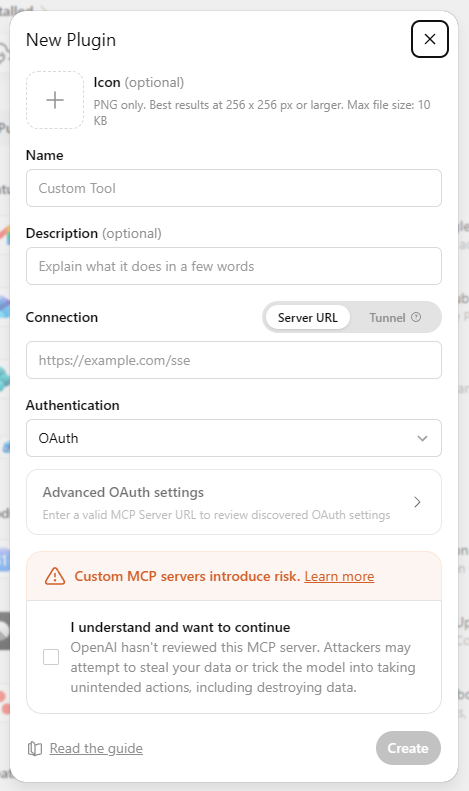
- Enter a name and description for your plugin.
Name the plugin after your project. For example, if your project is called "ACME Documentation", name the plugin "ACME Documentation". This is especially useful if you connect more than one project to ChatGPT.
- Paste your MCP URL into the Connection field.
- Choose OAuth for authentication.
- Select I understand and want to continue.
- Click Create.
- Sign in to HelpGuides if asked, then click Approve to give ChatGPT access.
Use HelpGuides in a conversation
- Start a new conversation.
- Click + in the message box, choose Developer mode, and select your HelpGuides plugin.
- Ask your question. Naming the plugin helps, for example: "Use ACME Documentation to find articles about single sign-on."
ChatGPT asks you to confirm before it runs a tool that changes content, such as creating or updating an article. Edits are saved as drafts and working copies for you to review in HelpGuides. For every tool, see Model Context Protocol Endpoints.
Manage or remove the plugin
Your plugin is listed under Drafts in ChatGPT's plugin settings. From there you can turn individual tools on or off, refresh it to pick up new HelpGuides tools, or delete it. To cut off every AI assistant at once, turn off Enable Model Context Protocol in AI Settings.
Using Claude as well? See Add Claude as an MCP Connector. To have an assistant act on instructions you leave in the editor, see Review Comments and AI Agents.